DocsConnect
Change Wi-Fi or move your Box
Switch your Box to a different Wi-Fi network from Settings, and get it back online after you move it to a new home or a new router.
Put your Box on a new Wi-Fi network, or get it back online after a move or a new router.
You need a device signed in to your Box (Sign in and add devices) and the new network's name and password. Passwords are case-sensitive.
Change Wi-Fi
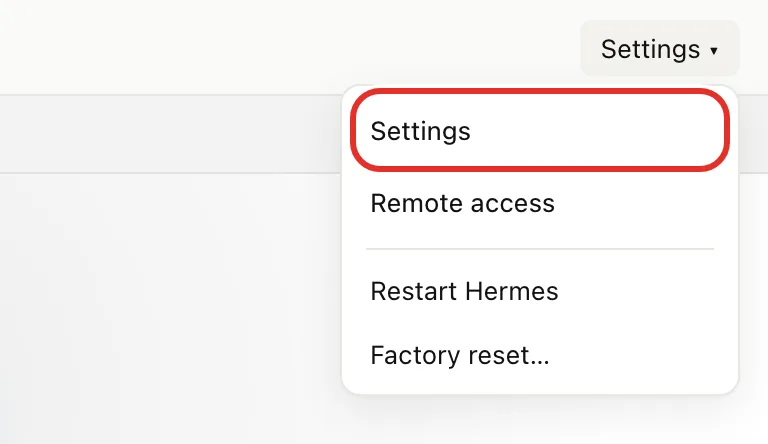
- Go to box.local, tap Settings ▾ at the top right, then tap Settings.
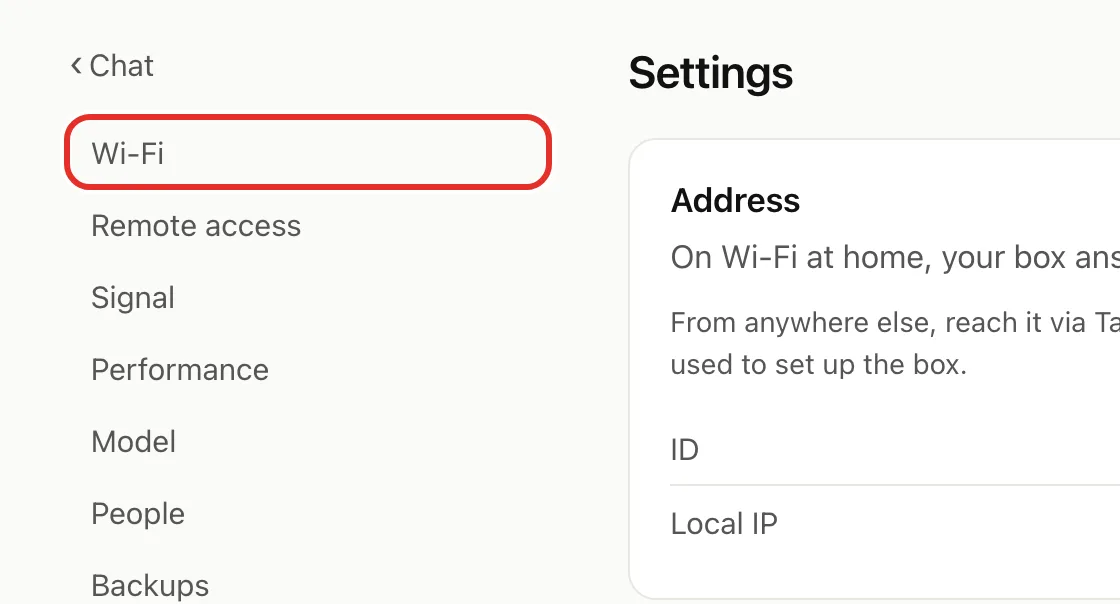
- Tap Wi-Fi in the left menu.
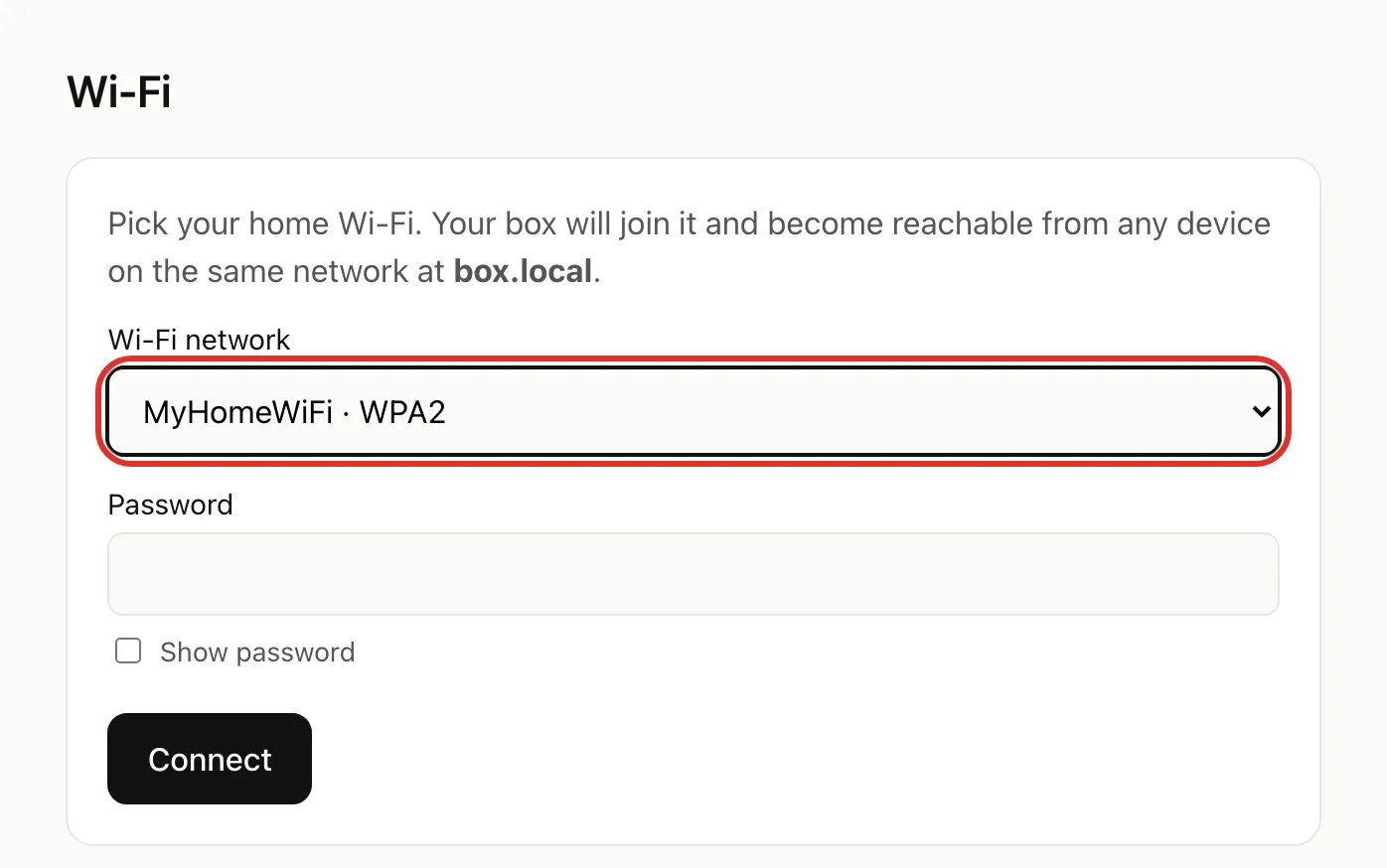
- Tap the Wi-Fi network list and pick your network.
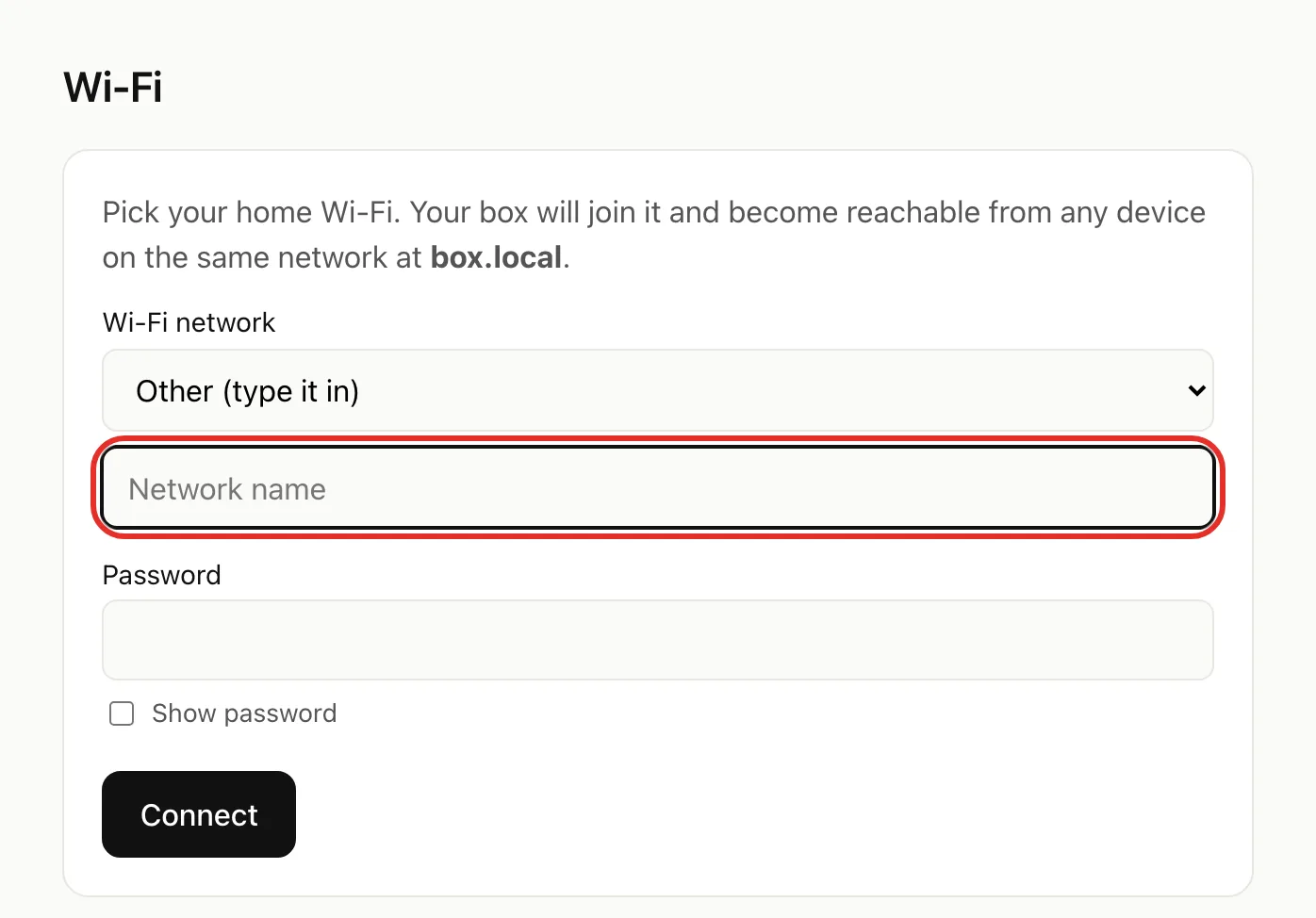
Network not listed? Pick Other (type it in) and type the name exactly as written on your router.
- Type the password in Password, then tap Connect.
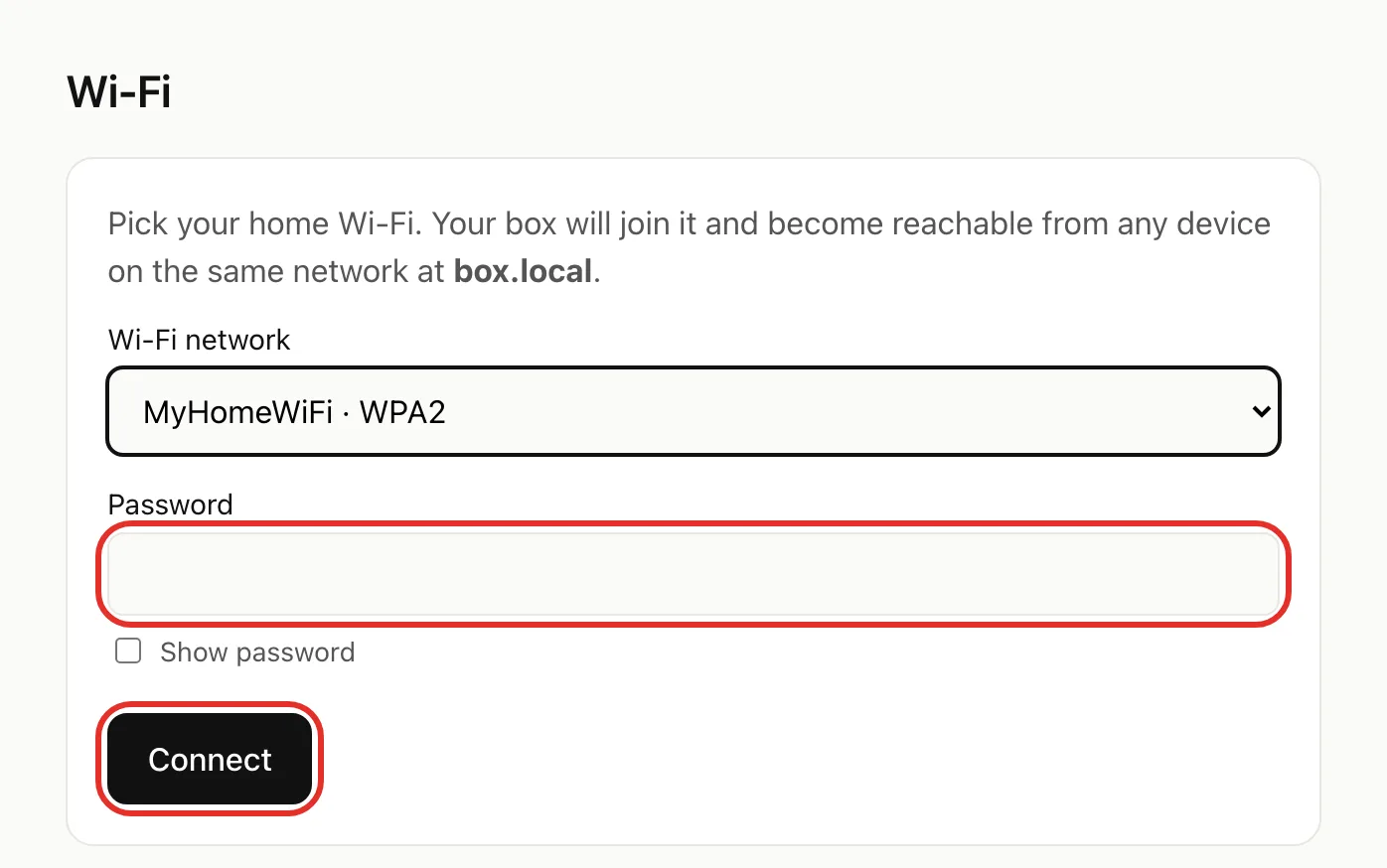
- Leave the Trying your new Wi-Fi… page open for up to a minute. It ends in one of three ways:
- Connected. Tap Back to settings.
- Couldn't reach (network name). The Box stayed on its old network. Check the name and password, then tap Try again.
- Both networks unreachable. The Box opened its box-setup network. Follow Get back online after a move from step 2.
Get your Box back online after a move
A minute or two after the Box loses its connection, it opens its own Wi-Fi called box-setup.
- Plug in the Box and wait a few minutes for it to start.
- On your phone, open Settings > Wi-Fi and join box-setup (no password).
- If no sign-in window opens, go to 192.168.4.1 in your browser.
- Type your Box password and tap Sign in.
- Go to Settings > Wi-Fi and connect, as in Change Wi-Fi. Your phone drops off box-setup; that's expected.
- Rejoin your home Wi-Fi on your phone and go to box.local. Chats and settings are unchanged.
A Box plugged into the router with a network cable never opens box-setup. Open box.local from a device on that router's Wi-Fi.
Disconnect Wi-Fi
Only do this if you want the Box to forget its network, for example before giving it away.
- On the Wi-Fi page, tap Disconnect Wi-Fi, then Disconnect to confirm.
- With a network cable plugged in, the Box stays at box.local. Without one, box-setup returns in about 10 seconds; follow Get back online after a move from step 2.
If something goes wrong
- box.local won't open after connecting: check that box-setup is back in your phone's Wi-Fi list. If so, the Box couldn't join; repeat with the correct name and password.
- box-setup appears though nothing moved: your home internet went down. Once it's back, join box-setup and reconnect the Box.
- "Couldn't scan nearby networks": type your network name into the Network name box.
- Box says connected but box.local won't load: use the main Wi-Fi, not a guest network. On a Mac, allow your browser to find devices on your local network. See Troubleshooting.
Away from home? See Reach your Box from anywhere. Still stuck? Email michael.maddison@voxcura.io or see Get help.
Verified on Box software 0.2.8 · 2026-10-05