DocsUse your Box
Chat with your Box
A tour of the chat screen at box.local: starting a conversation, the message box and its buttons, your conversation list, the left menu and the Settings menu.
A quick tour of the chat screen you see after signing in at box.local. Not signed in yet? See Sign in and add devices.
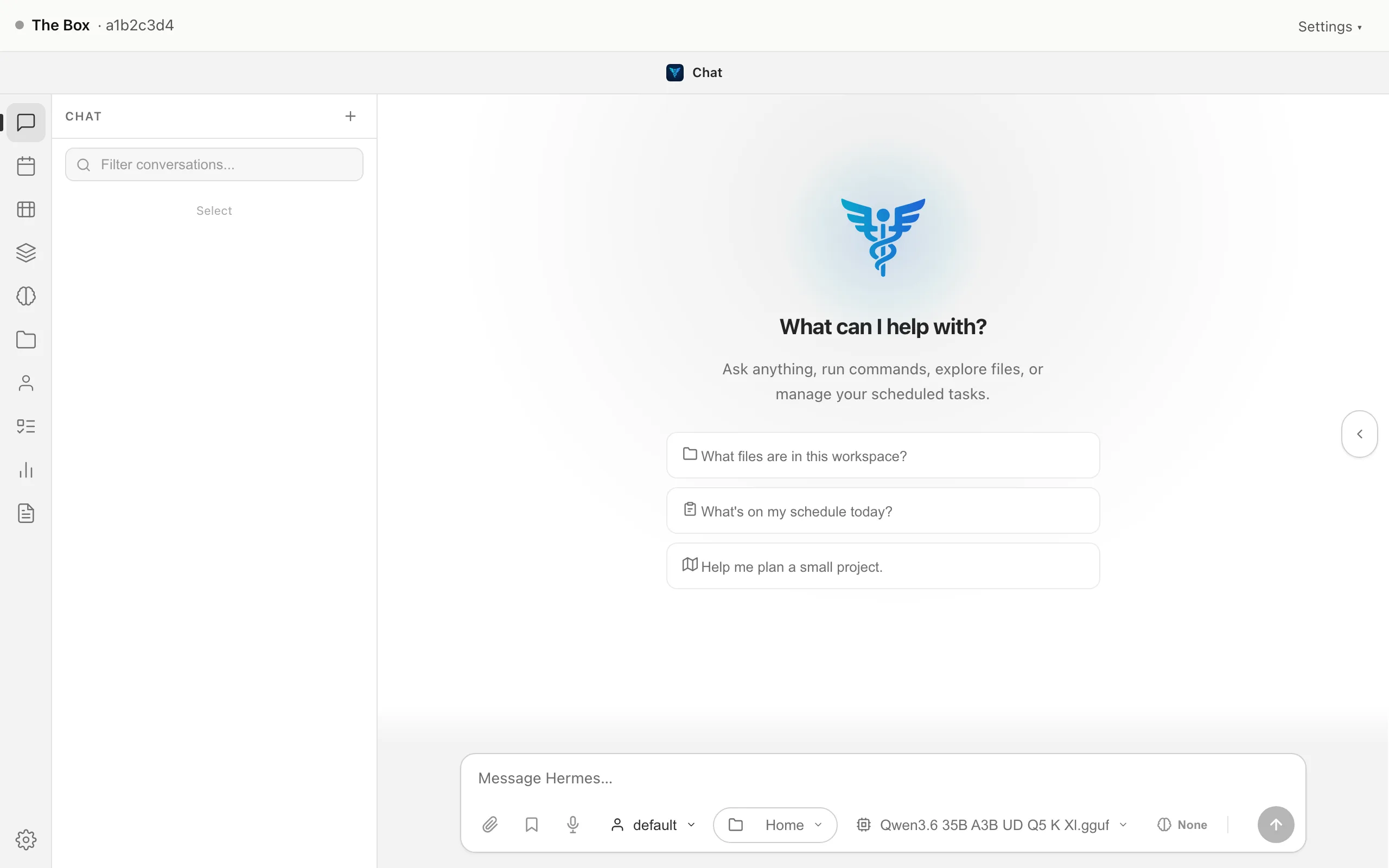
Start a conversation
- Click + (New conversation) next to CHAT. Shortcut: Ctrl+K (Mac: Cmd+K).
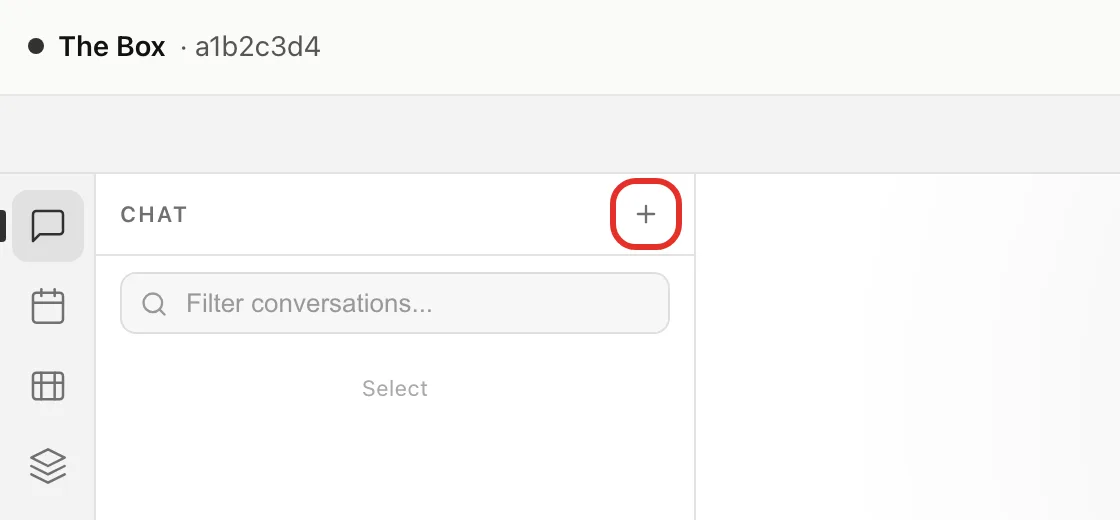
- Click in Message Hermes… and type.
- Press Enter to send (Shift+Enter for a new line). On a phone, tap the round arrow.

Or tap an example question on the welcome screen.
Attach files
- Click the paper clip (Attach), or drag files onto the chat window.
- Type your message and send.
Pictures, PDFs, text, Word, Excel, CSV and zip files work. For pictures, first turn on Understand images in Settings ▾ → Settings → Model (off by default; see Choose and download models).

Dictate
Click the microphone to speak instead of type.

Other message box buttons
- Bookmark: saved prompts. Save current input as prompt keeps a message to reuse.
- default and Home: this chat's profile and workspace (folder on your Box).
- Model name: the AI answering. See Choose and download models.
- None: reasoning effort. Click to change.
Find an old conversation
Click it under CHAT, or type a word in Filter conversations.... On a phone, tap Menu (three lines) first.
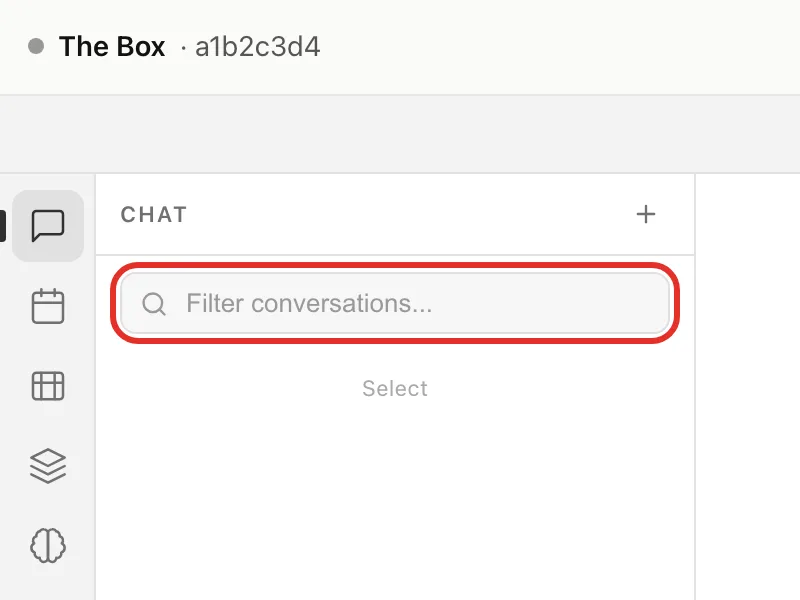
The left menu
Hover an icon to see its name.
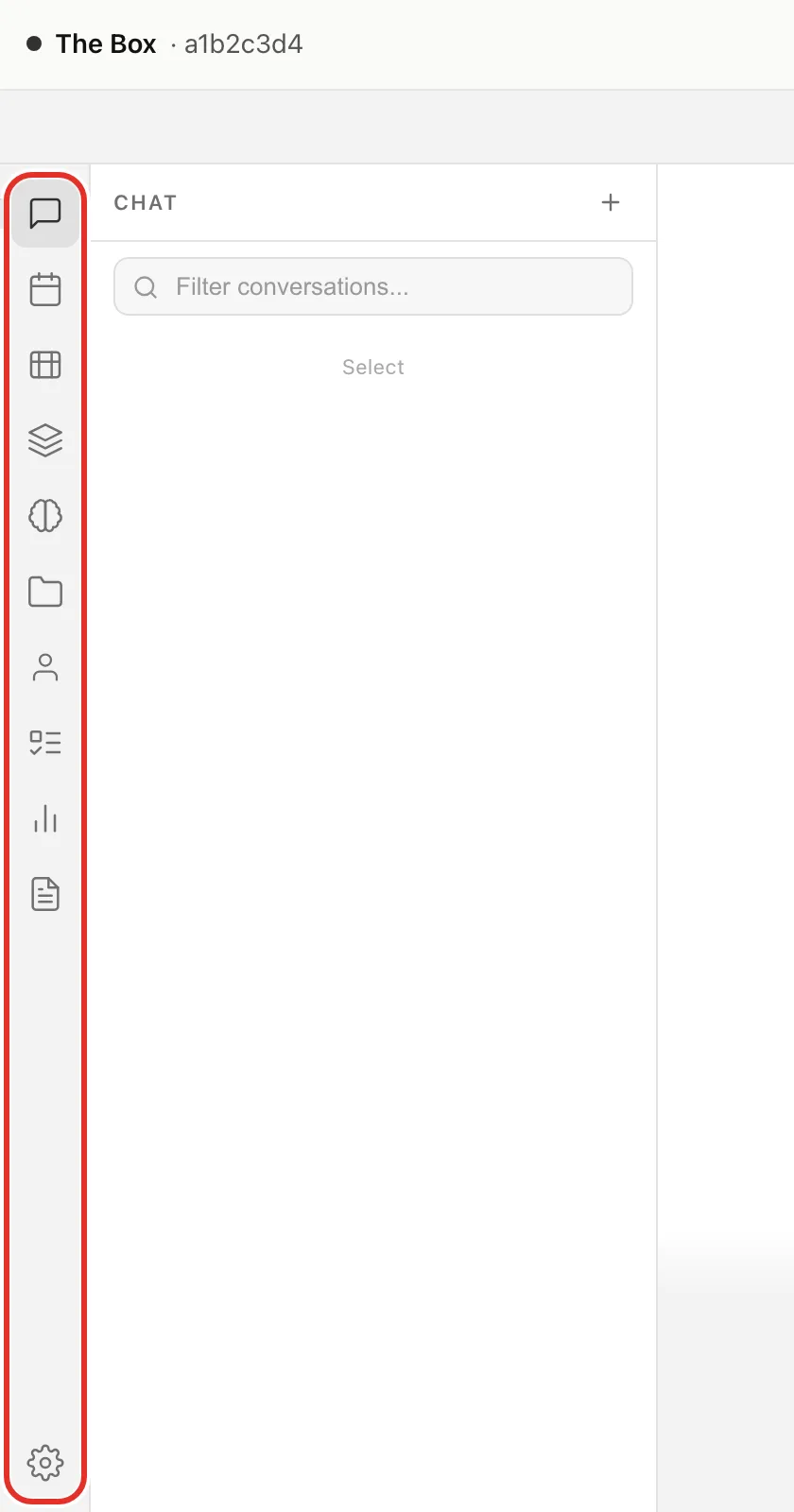
- Chat: your conversations.
- Tasks: jobs your Box runs on a schedule.
- Kanban: a task board.
- Skills: instructions your Box can follow for particular jobs.
- Memory: what your Box remembers about you between conversations.
- Spaces: your workspaces (folders).
- Profiles: chat profiles. Yours starts with default.
- Todos: the step list your Box keeps while working.
- Insights: your sessions, messages and tokens over time.
- Logs: only needed if support asks.
- Gear (bottom): chat appearance and preferences.
The Settings menu
Your Box's settings (Wi-Fi, backups, remote access) are under Settings ▾ at the top right.
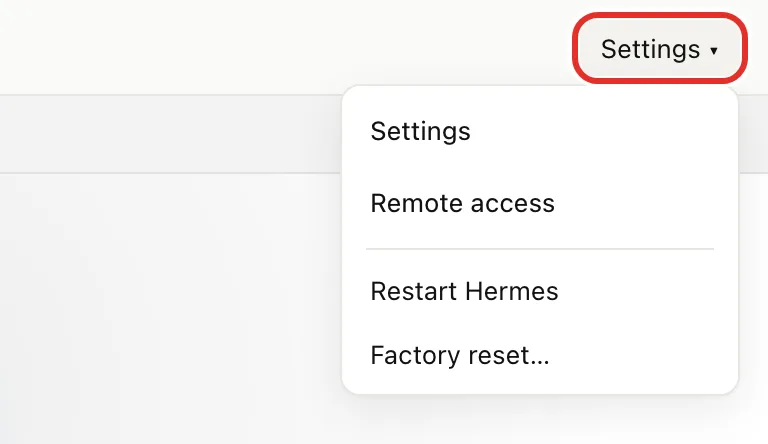
- Settings: Wi-Fi, Signal, Model, People, Backups, Software and more.
- Remote access: see Reach your Box from anywhere.
- Restart Hermes: restarts the chat (back in about 30 seconds).
- Factory reset…: erases your Box. Read Factory reset first.
If something goes wrong
- No answer arrives: Settings ▾ → Restart Hermes, wait 30 seconds, try again.
- Chat page won't load: see Troubleshooting.
- Still stuck: see Get help or email michael.maddison@voxcura.io.
Verified on Box software 0.2.8 · 2026-10-05