DocsKeep it running
Update your Box
See which software version your Box is running, check for updates, choose when to install one, and set how your Box checks for updates.
Check your version, install updates, and choose how your Box looks for them. Your Box never installs an update until you say so. To see what changed in each version, see Updates.
Open the Software page
- Go to box.local in a browser. Away from home? See Reach your Box from anywhere.
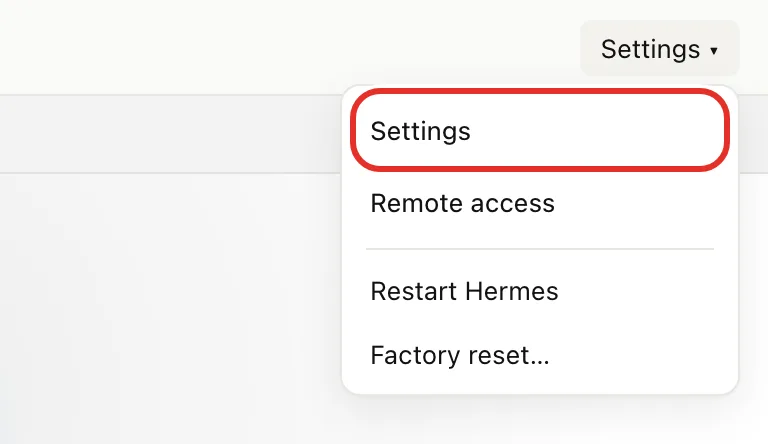
- At the top right, tap Settings, then Settings in the menu.
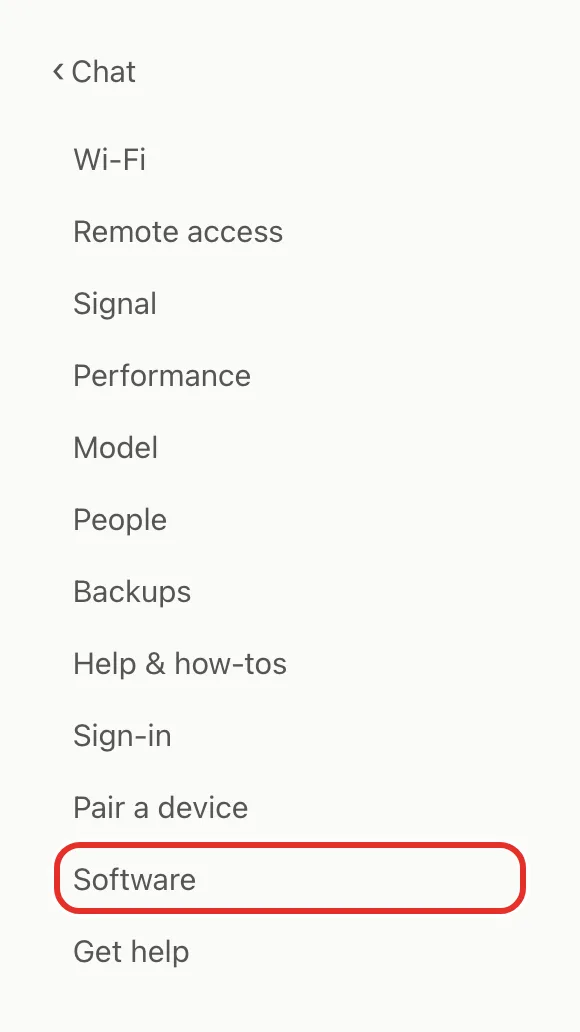
- In the menu on the left, tap Software. On a phone, the menu is at the top.
Check your version and for updates
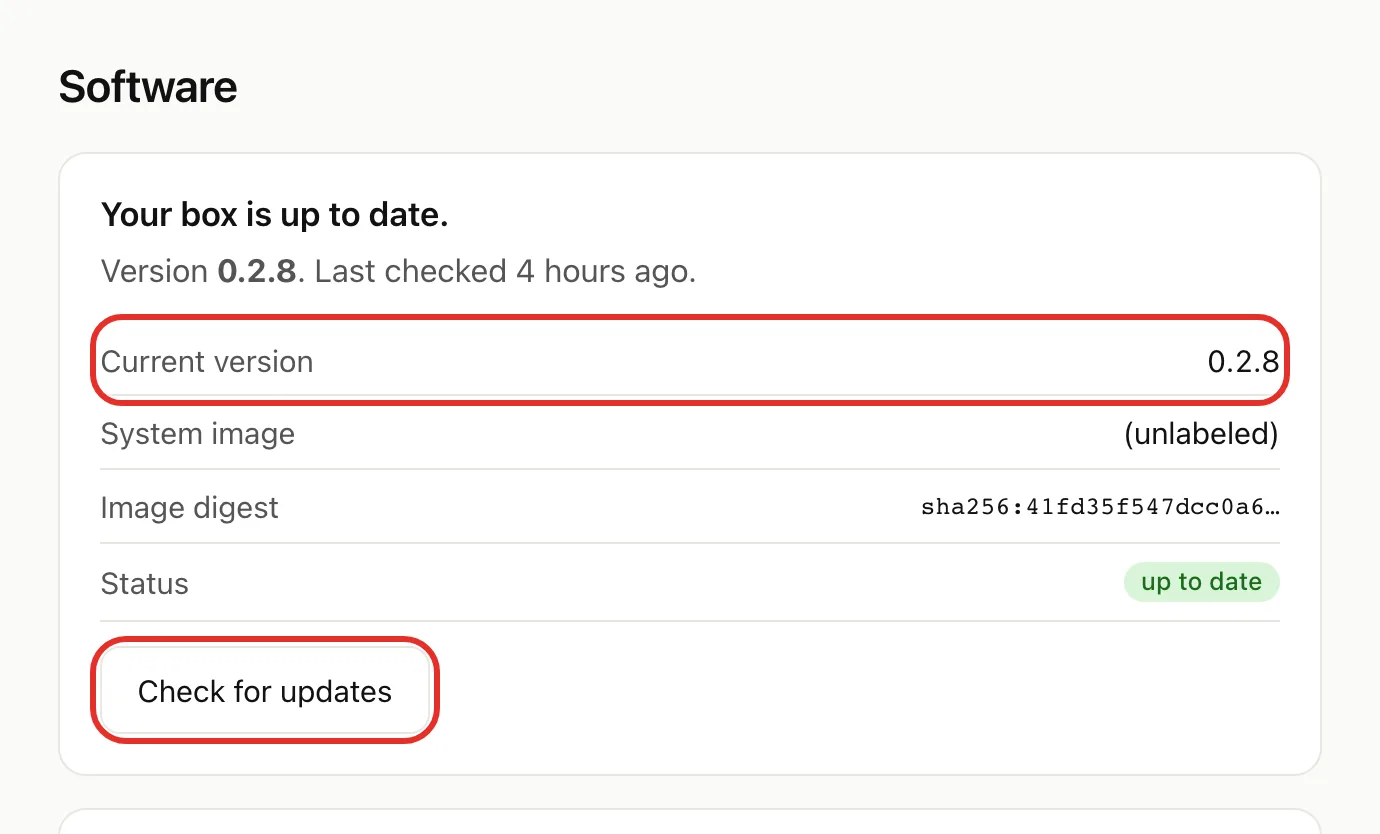
- Read Current version at the top of the Software page.
- Tap Check for updates to check right away. Checking never installs anything.
Install an update
When one is ready, a yellow card appears above Preferences with the new version number.
- Tap Install Tonight (3:00 AM) to install overnight, your Box's local time.
- Or tap Install & Restart Now (or Install Now) to install right away.
To change a scheduled update, tap Install Now Instead or Cancel update on the Scheduled update card. A cancelled update stays available.
A red Important update available card works the same way. Install it soon.
Turn the daily check on or off
It looks for updates once a day and never installs them. It starts on.
- In Preferences, tap the Daily background check switch. It saves straight away.
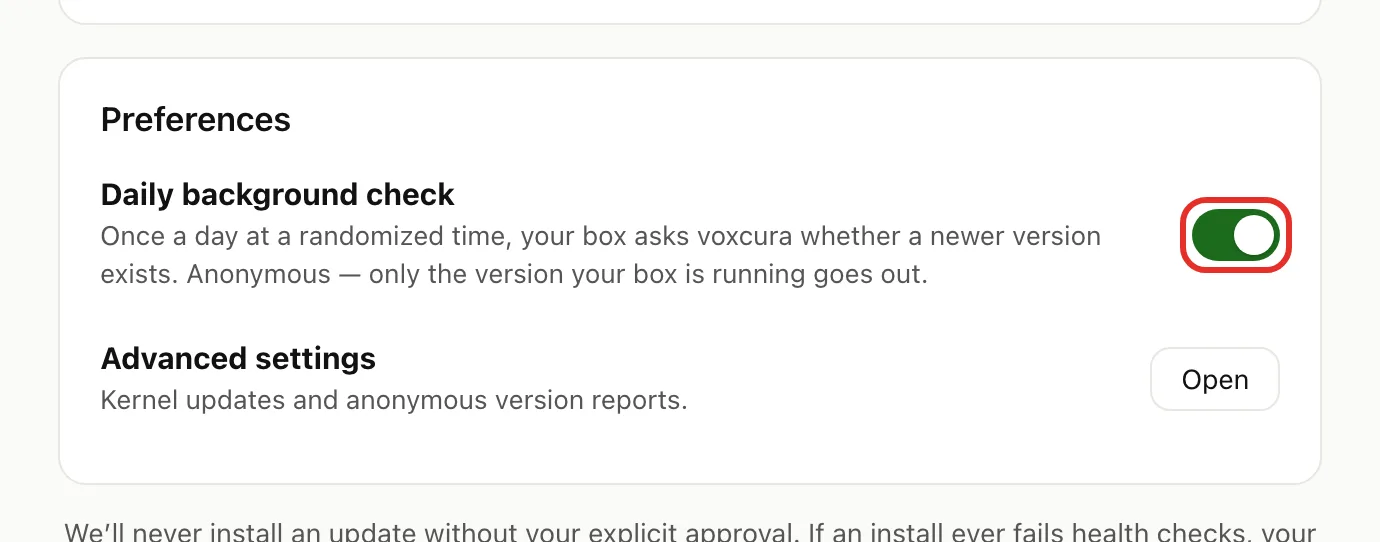
With it off, your Box only finds updates when you tap Check for updates.
Advanced settings
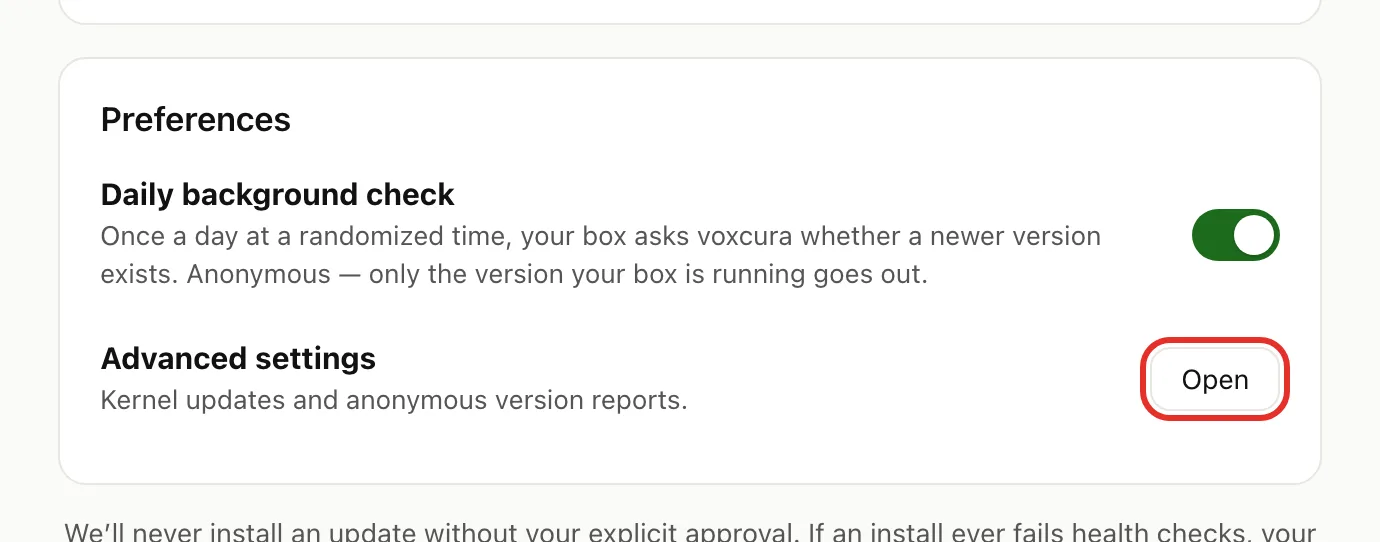
- In Preferences, next to Advanced settings, tap Open.
- Leave Include kernel updates off. A kernel update can occasionally stop your Box from booting, and only our support team can recover it.
- Turn on Send weekly version report if you want to help us. It sends only your version, hardware tier, country and uptime.
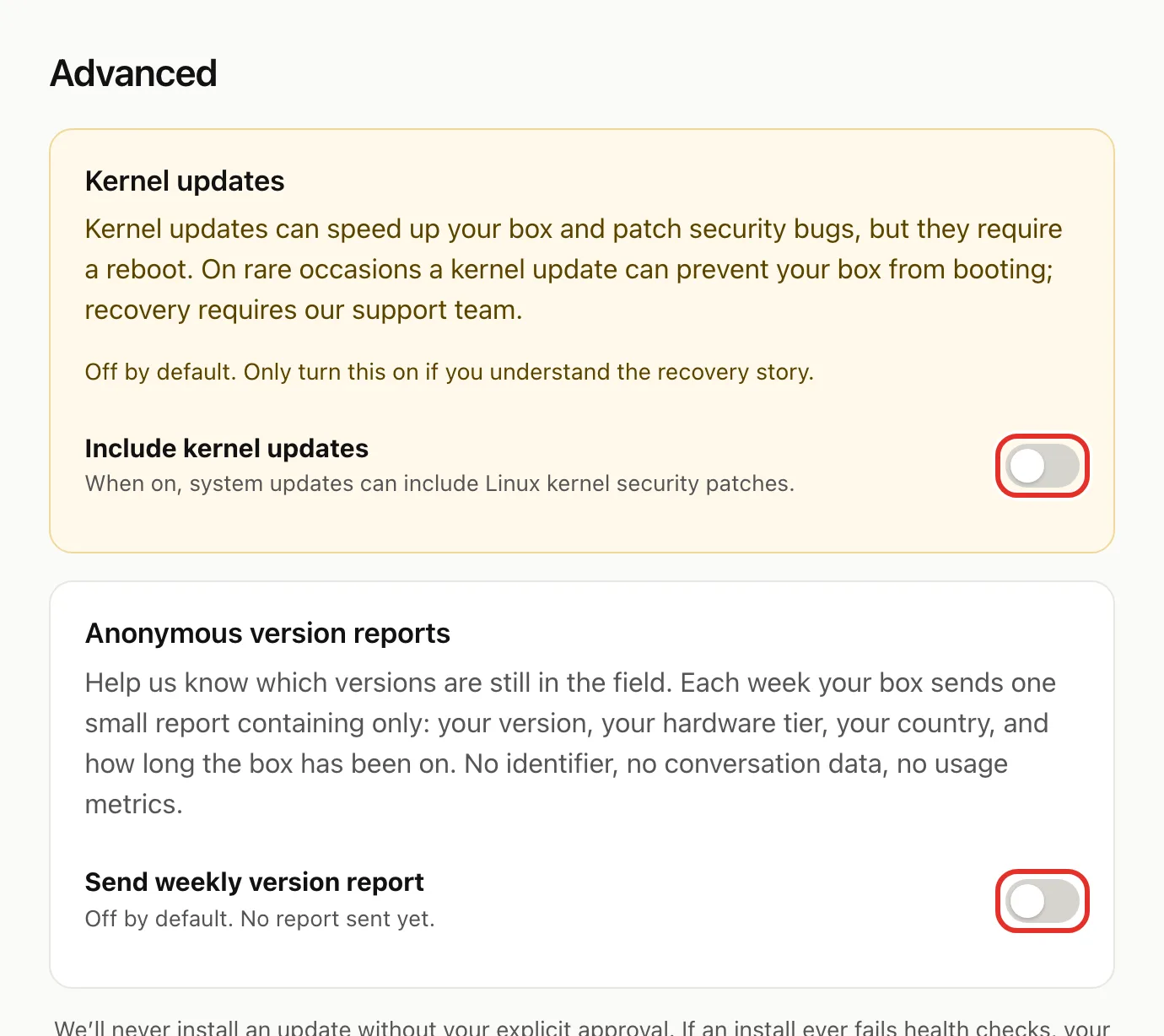
Each switch saves as soon as you tap it.
If something goes wrong
- Status says "couldn't check": your Box could not reach us. Check it is online, then tap Check for updates again.
- A card says an update "didn't go smoothly — we put it back": your Box went back to the previous version on its own and is working. Nothing to do. To tell us, email michael.maddison@voxcura.io.
- A card says the Box restarted twice without recovering: tap Open support session and see Get help.
- Support asks for your update details: open Support view at the bottom of the Software page and share it during your support session. It is read-only.

Related pages
Verified on Box software 0.2.8 · 2026-10-05