DocsUse your Box
Choose and download models
Pick which AI model your Box uses for chat, turn image understanding and thinking on or off, download new models we have approved, and free up storage.
Switch the AI model behind your chat, turn image understanding or thinking on or off, and download or delete models.
Open the Model page
- Open box.local and sign in. See Sign in and add devices.
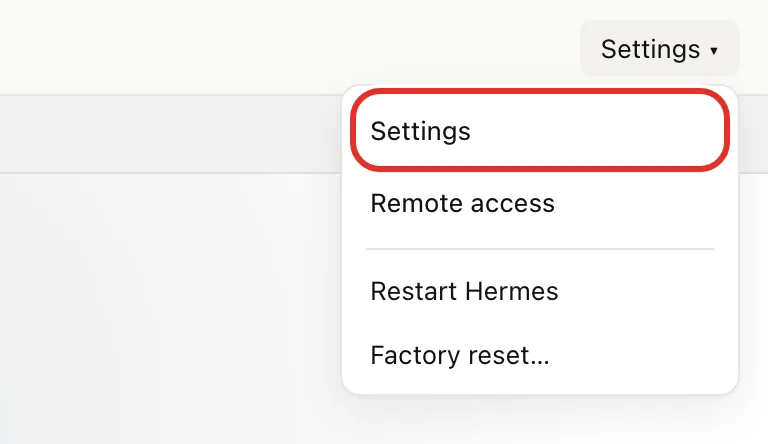
- At the top right of the chat screen, tap Settings ▾, then Settings.
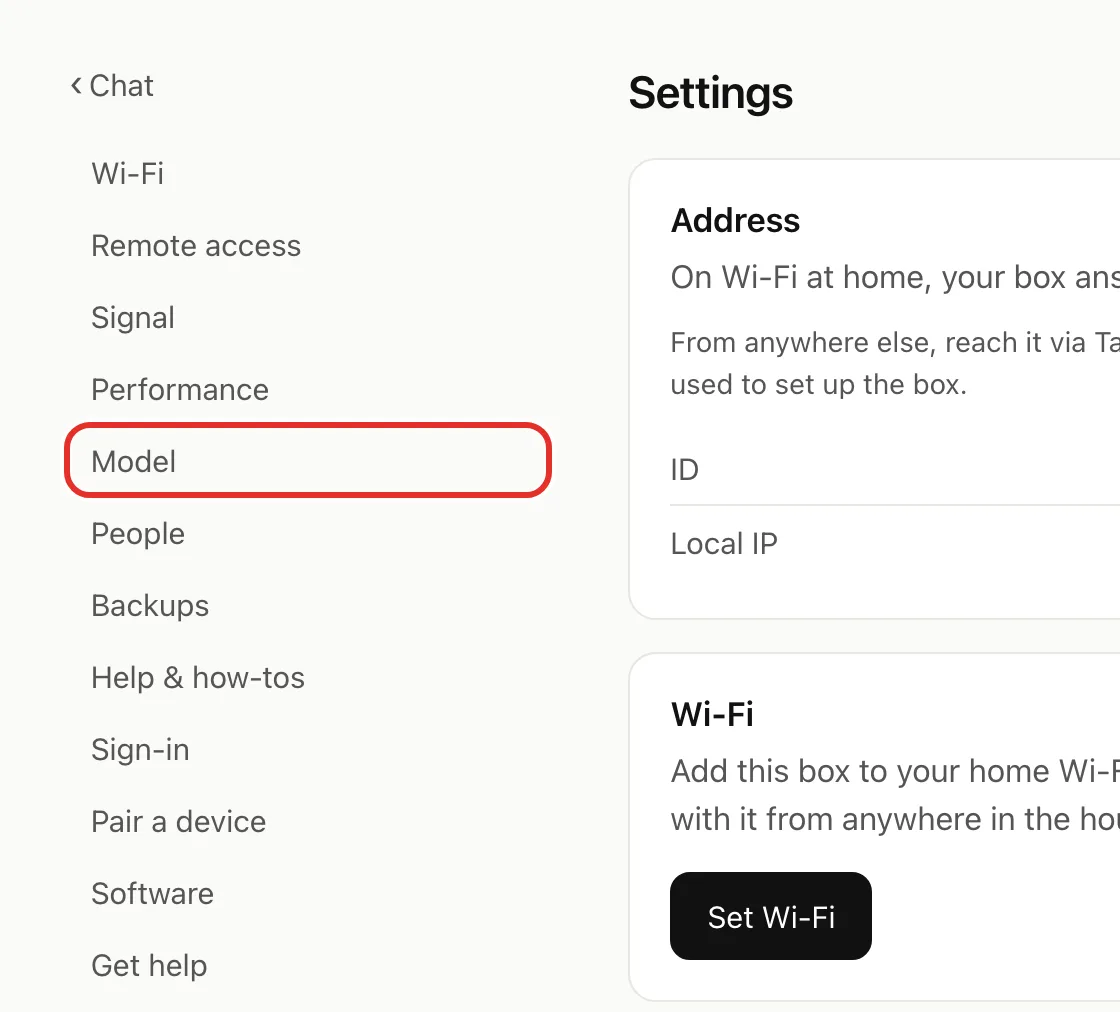
- In the list on the left, tap Model.
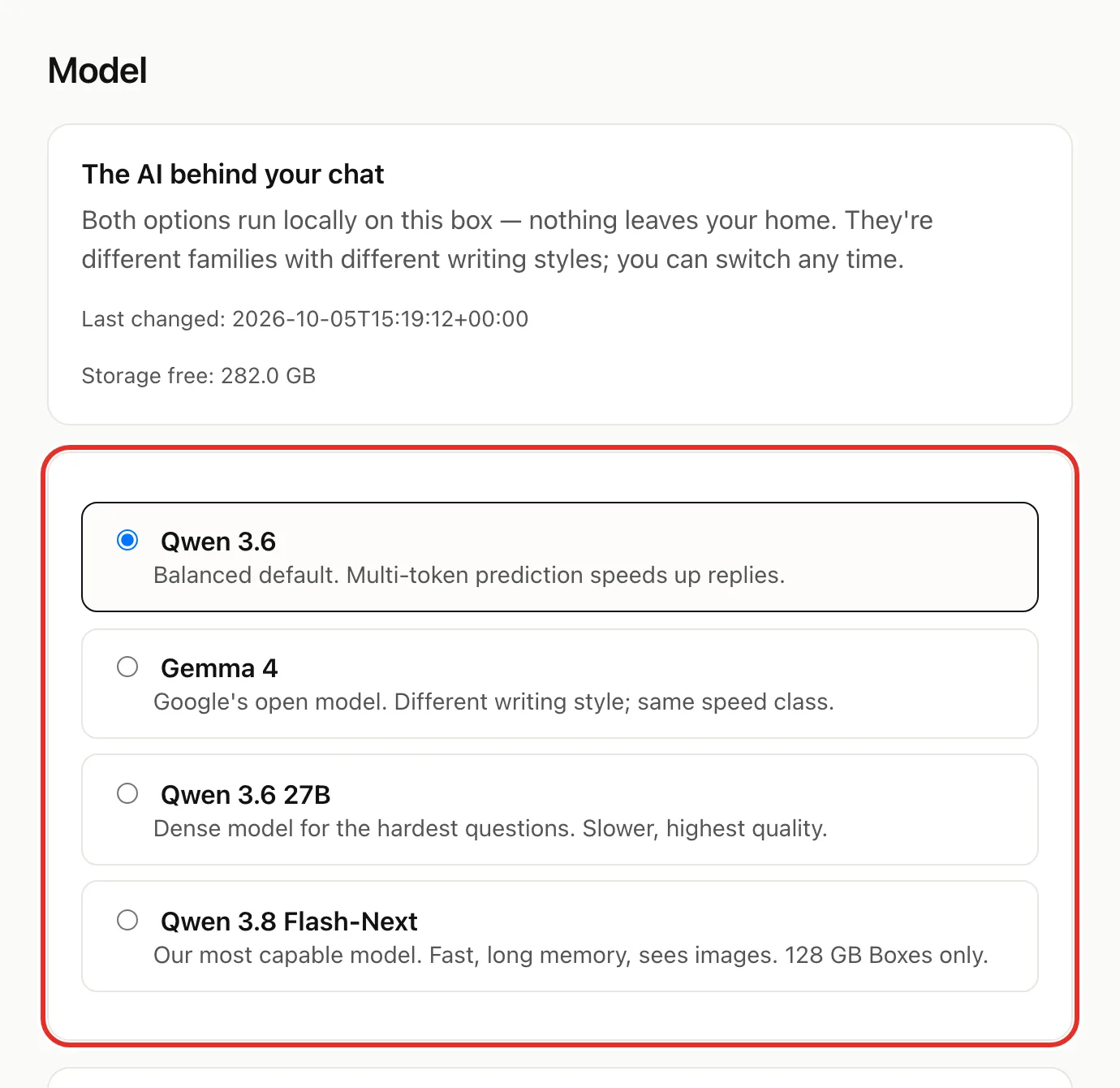
Switch models
- Tap the model you want. Not sure? Pick Qwen 3.6, the balanced default.
- Under Capabilities, tick or untick Understand images and Think before answering.
- Tap Apply.
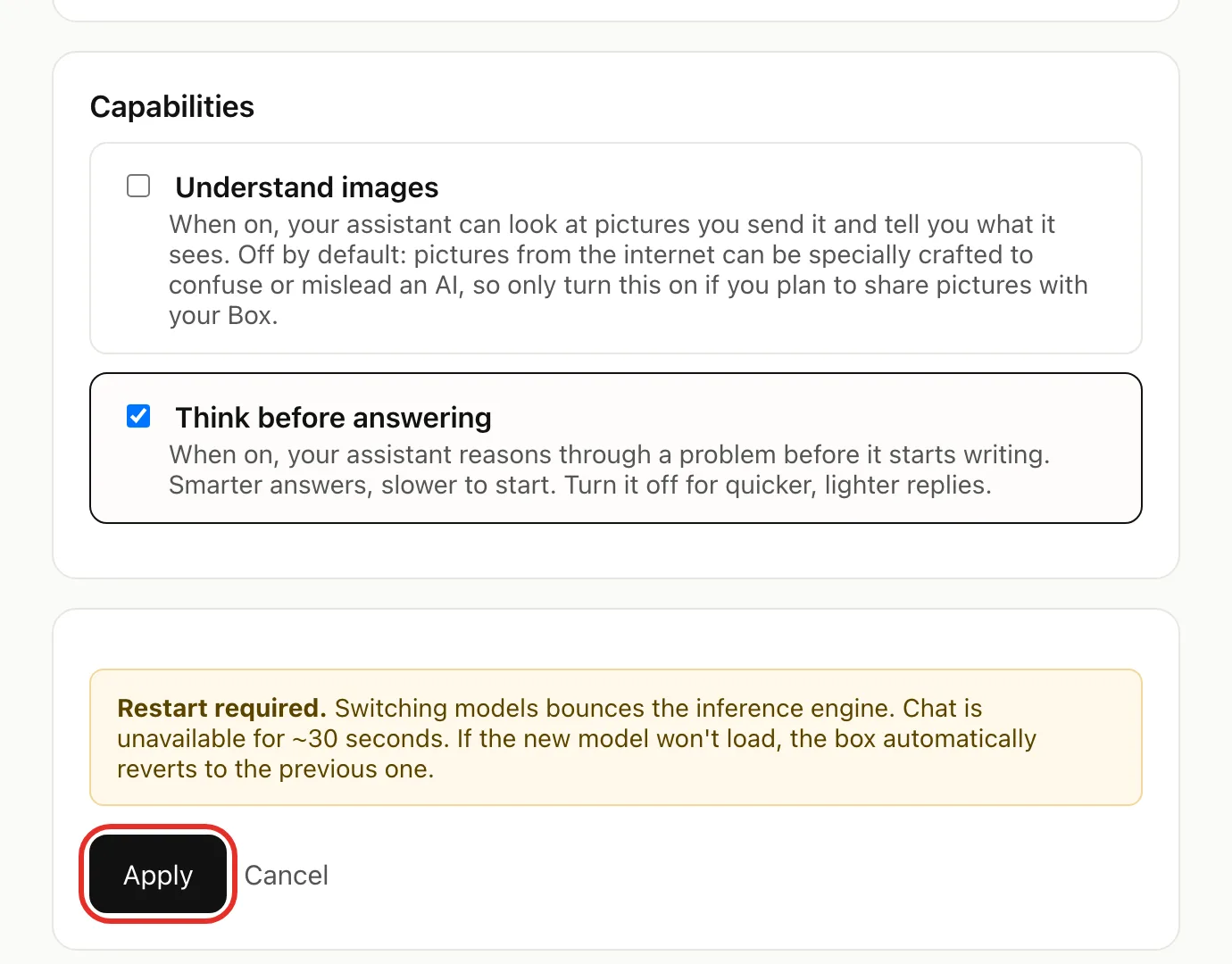
Chat pauses for about 30 seconds. When the Box shows Switched, you are done.
- Understand images: turn on only if you will send pictures. Pictures from the internet can be crafted to mislead an AI.
- Think before answering: smarter but slower to start. Turn off for quicker replies.
Download a new model
- Check that Storage free is larger than the new model's Size. If not, free up storage first.
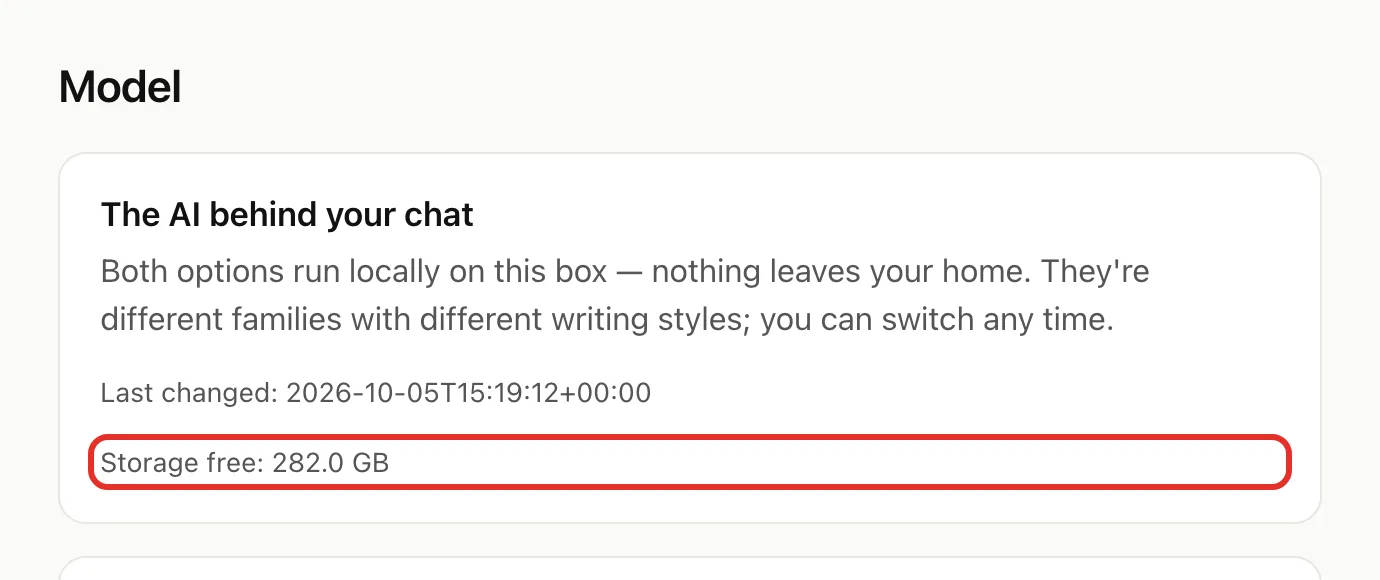
- Under New models available, tap Download & install on the model you want.
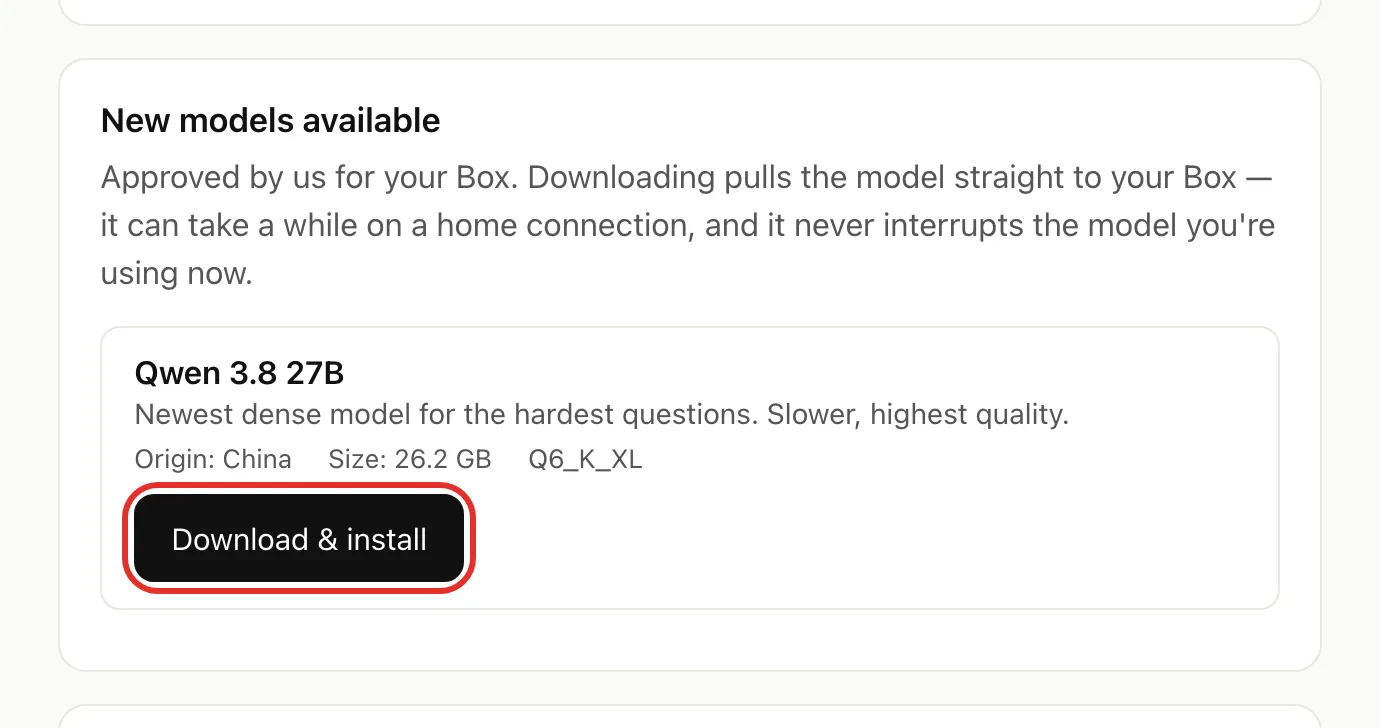
- Wait for Installed, then tap Back to models. Chat keeps working meanwhile.
- Switch to the new model.
Free up storage
- Under Free up storage, tap Delete next to the model. The model in use isn't listed; switch away from it first.
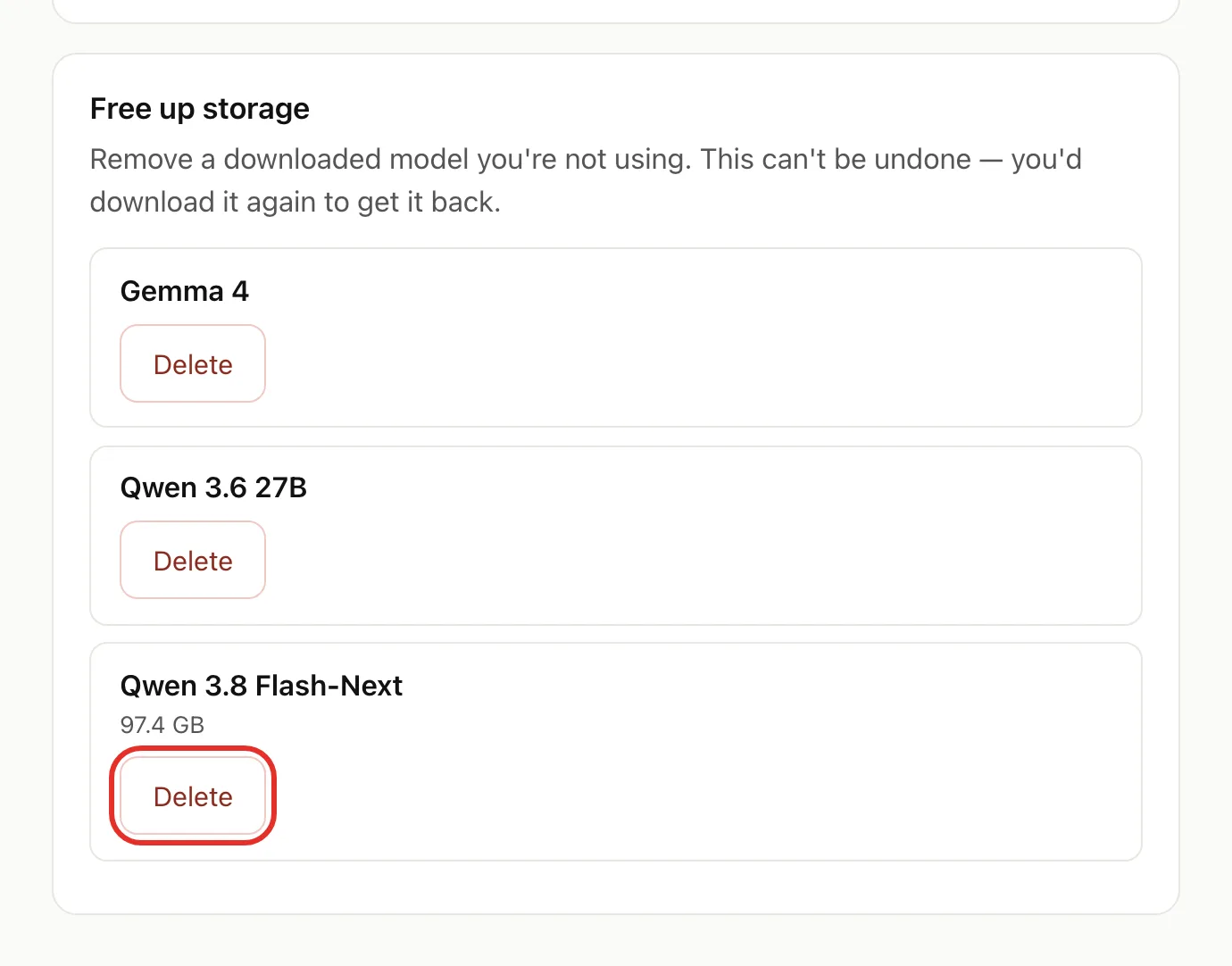
- Confirm in the box that pops up.
If something goes wrong
- Couldn't switch: your Box went back to the previous model. Tap Back to model and try another.
- Understand images — not installed: the selected model can't see pictures on your Box. Pick another model.
- Not enough storage: delete a model you don't use, then download again.
- Download stopped partway: tap Resume on the Model page, or Delete partial to discard it.
- Requires 128 GB instead of Download & install: that model doesn't fit your Box. Qwen 3.8 Flash-Next needs a 128 GB Box.
- Built-in models can't be removed: Qwen 3.6, Gemma 4 and Qwen 3.6 27B came with your Box and stay, even though they show Delete.
Related
Verified on Box software 0.2.8 · 2026-10-05