DocsUse your Box
Give someone their own chat profile
Set up a profile on the chat screen at box.local for someone in your home, with their own conversation list and their own folder, then switch to it on their phone or computer.
Give someone in your home their own profile on the chat screen at box.local. They get their own conversation list and their own folder for files, so neither of you has to sort through the other's chats.
You set it up on your computer, then they switch to it on their own phone or computer.
Before you start
- You are signed in to your Box. See Sign in and add devices.
- Pick a profile name for them: lowercase letters, numbers and hyphens, such as their first name. Write it down, because you type it twice.
Create their profile
On your computer:
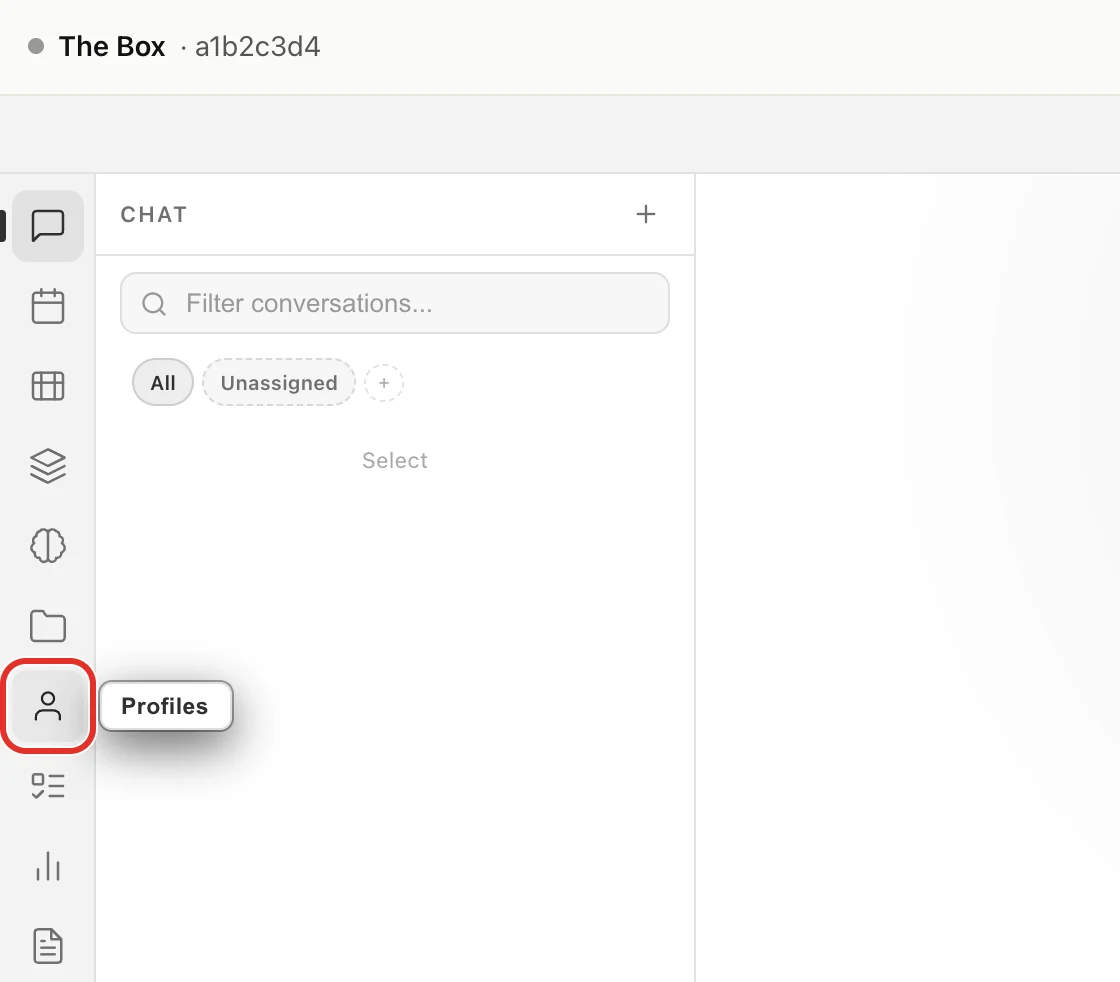
- Open box.local. In the left menu, click the person icon (Profiles).
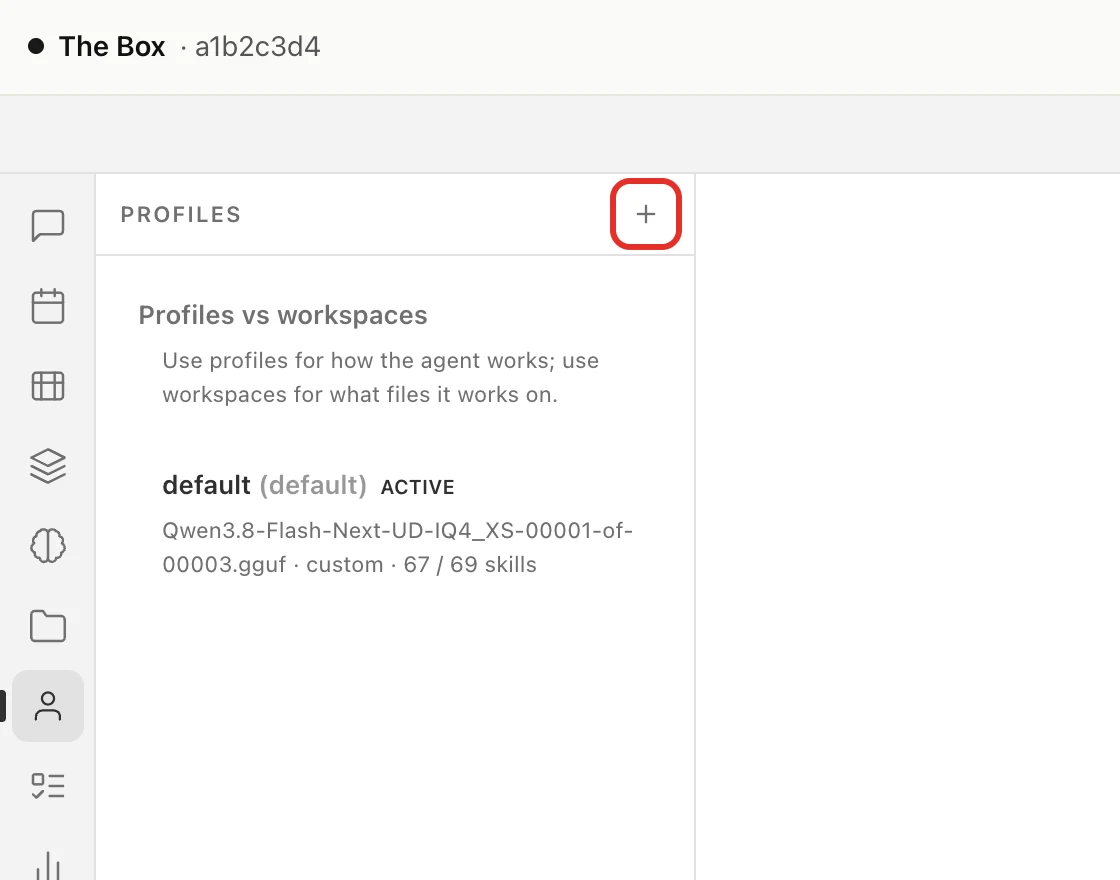
- Click + next to PROFILES.
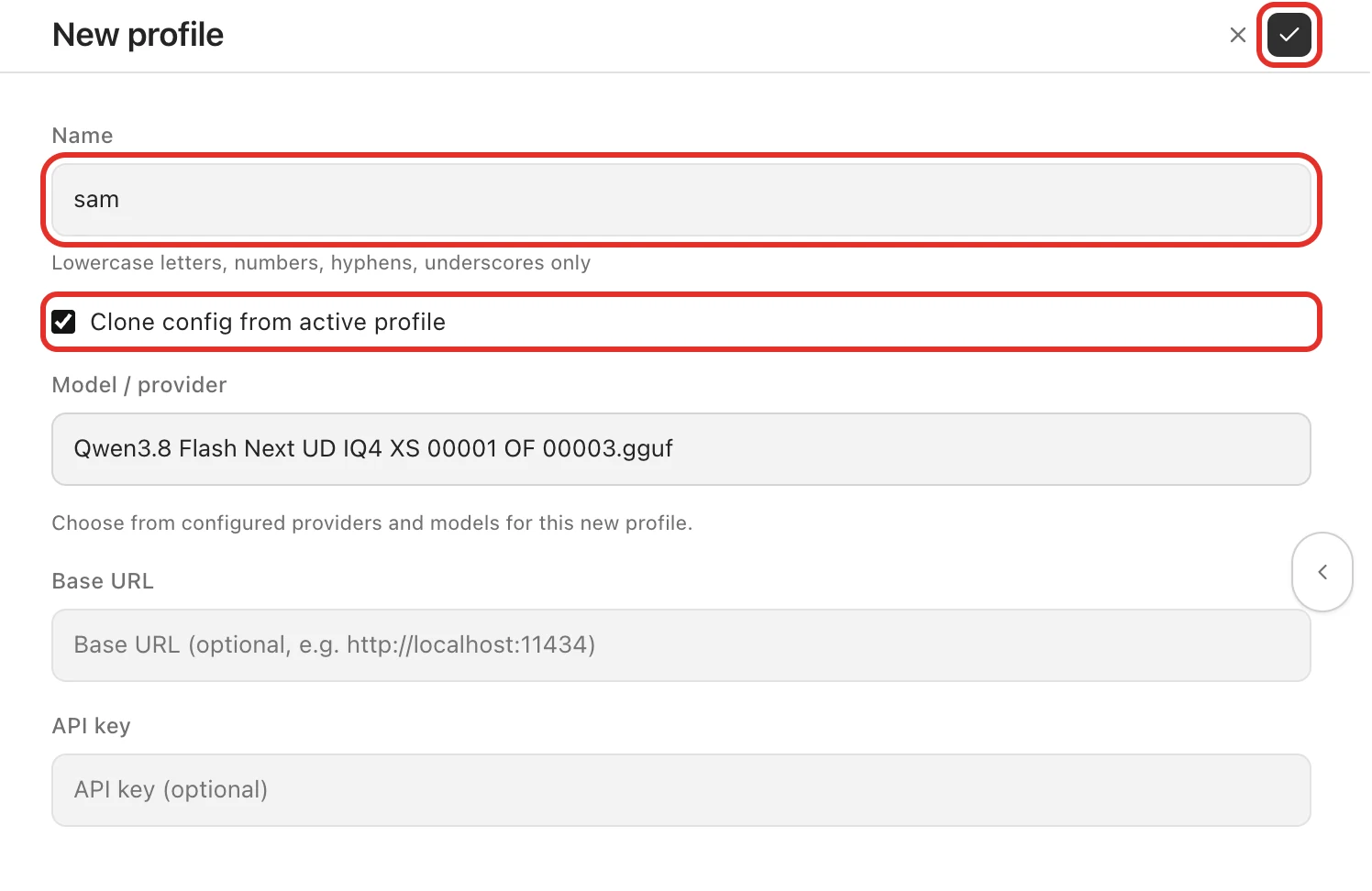
- In Name, type their profile name.
- Tick Clone config from active profile. Leave Model / provider as it is, and leave Base URL and API key blank.
- Click the check mark at the top right to save.
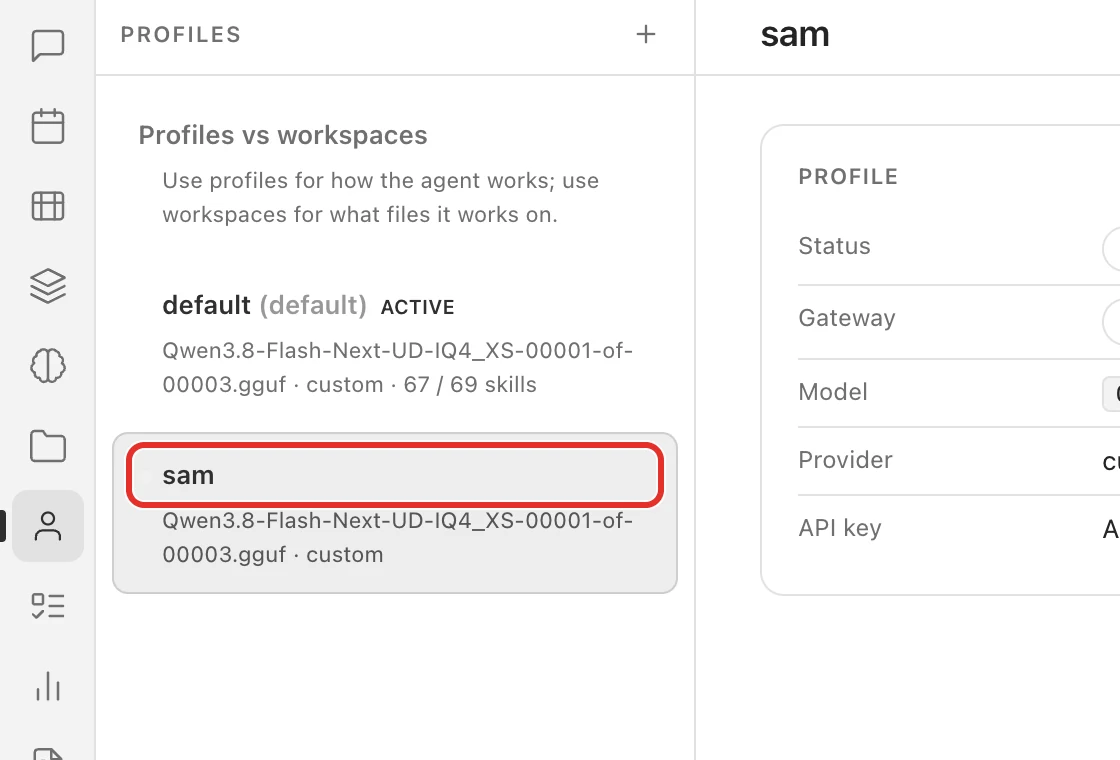
Their profile appears in the list under default, which is yours.
Give them their own folder
Still on your computer. A folder belongs to whichever profile is selected when you add it, so switch to theirs first.
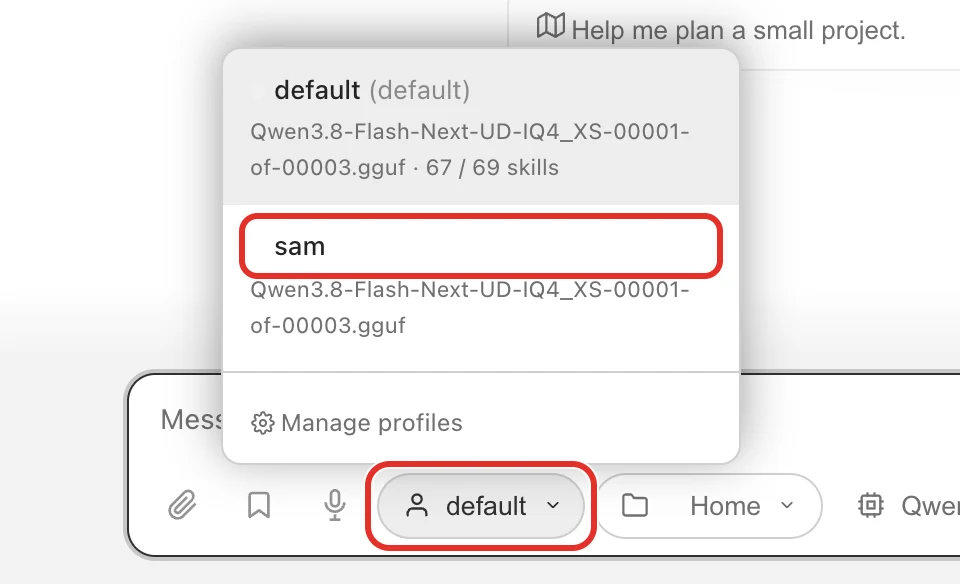
- In the left menu, click the speech bubble (Chat). Under the message box, click the profile button (it says default) and pick their profile name.
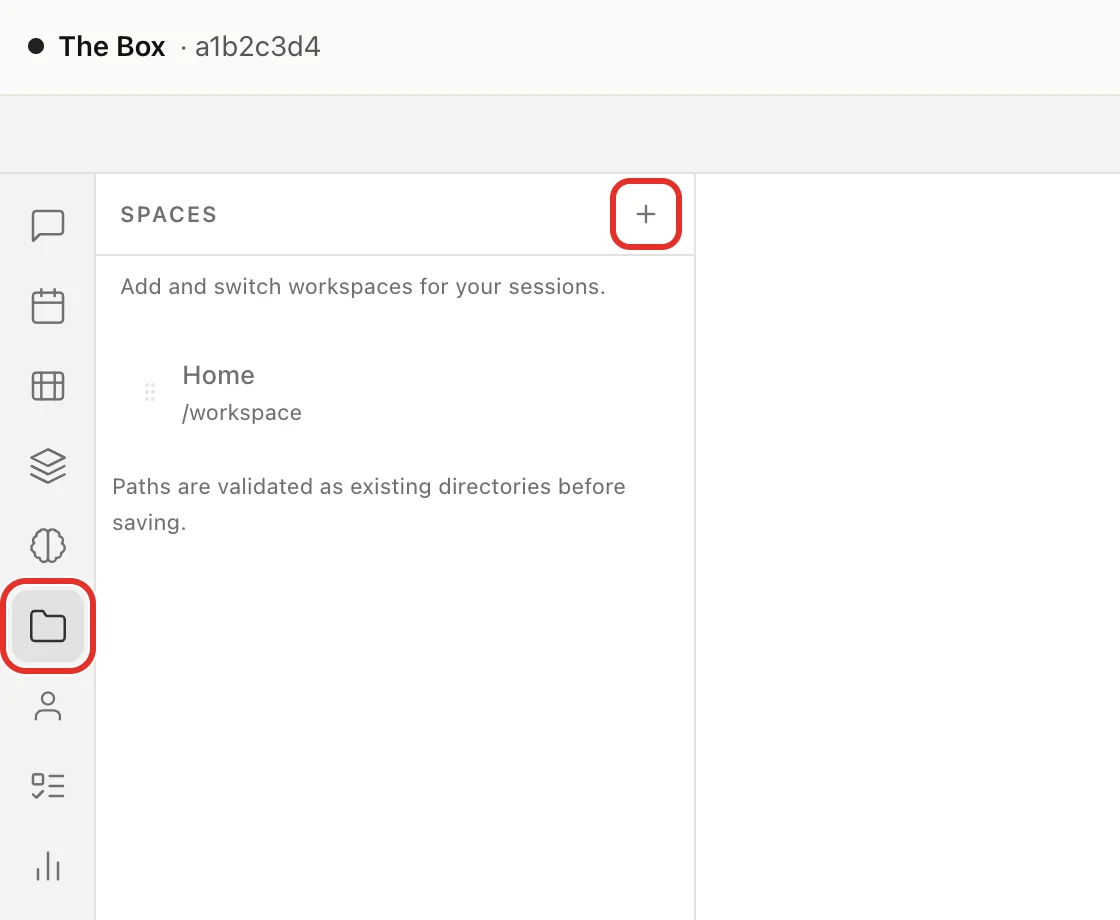
- In the left menu, click the folder icon (Spaces), then + next to SPACES.
-
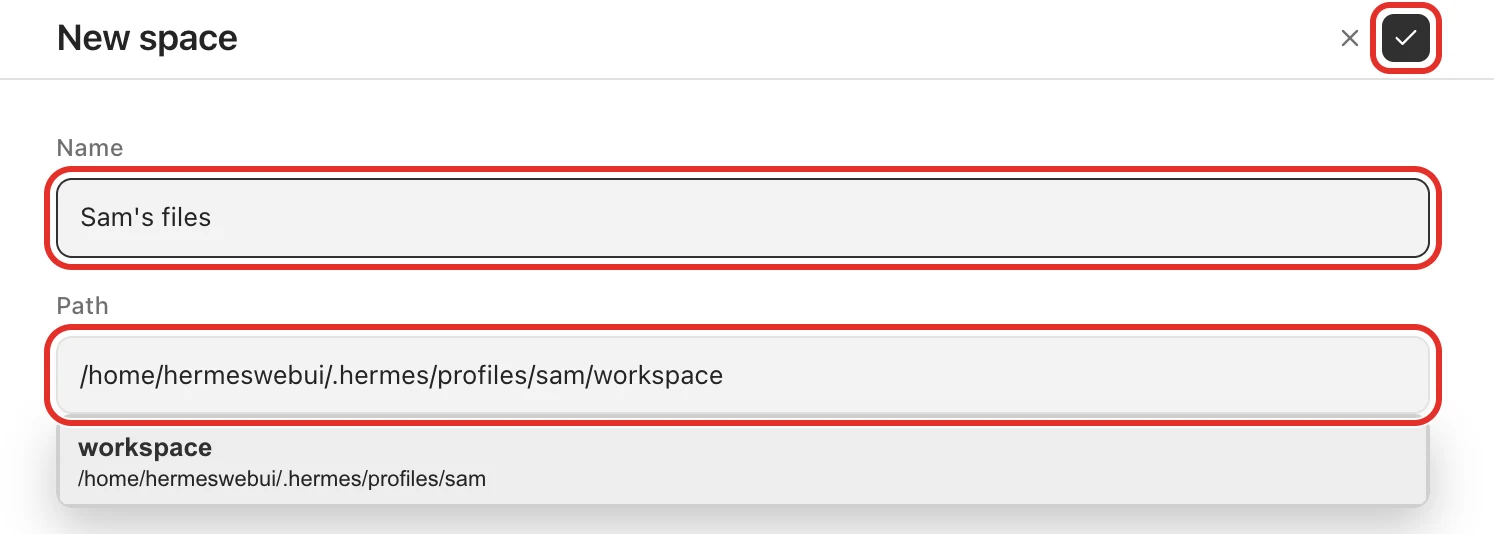
In Name, type a name for the folder, such as Sam's files.
-
In Path, type the following, replacing
<profile-name>with their profile name:/home/hermeswebui/.hermes/profiles/<profile-name>/workspaceYour Box made this folder when you created the profile.
-
Click the check mark at the top right to save.
- Switch yourself back: click Chat in the left menu, click the profile button (it now shows their name) and pick default.
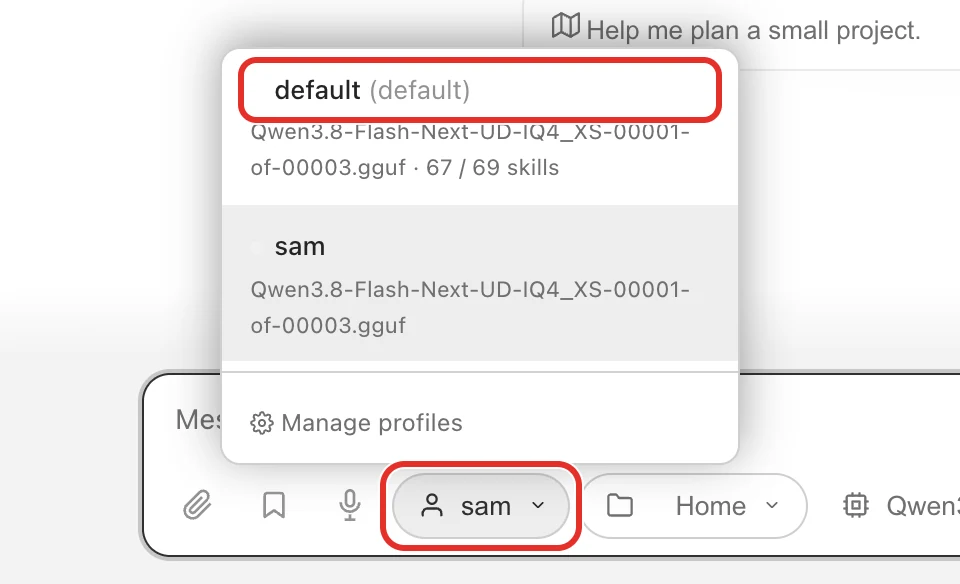
Your own chats and your Home folder are just as before.
On their phone or computer
- They open box.local and sign in, with your Box password or a pairing code from your device. See Sign in and add devices. At first they see your chats.
- Under the message box, they click the profile button (it says default) and pick their profile name. Your chats disappear from their list.
- They click the folder button next to it (it says Home) and pick their folder.
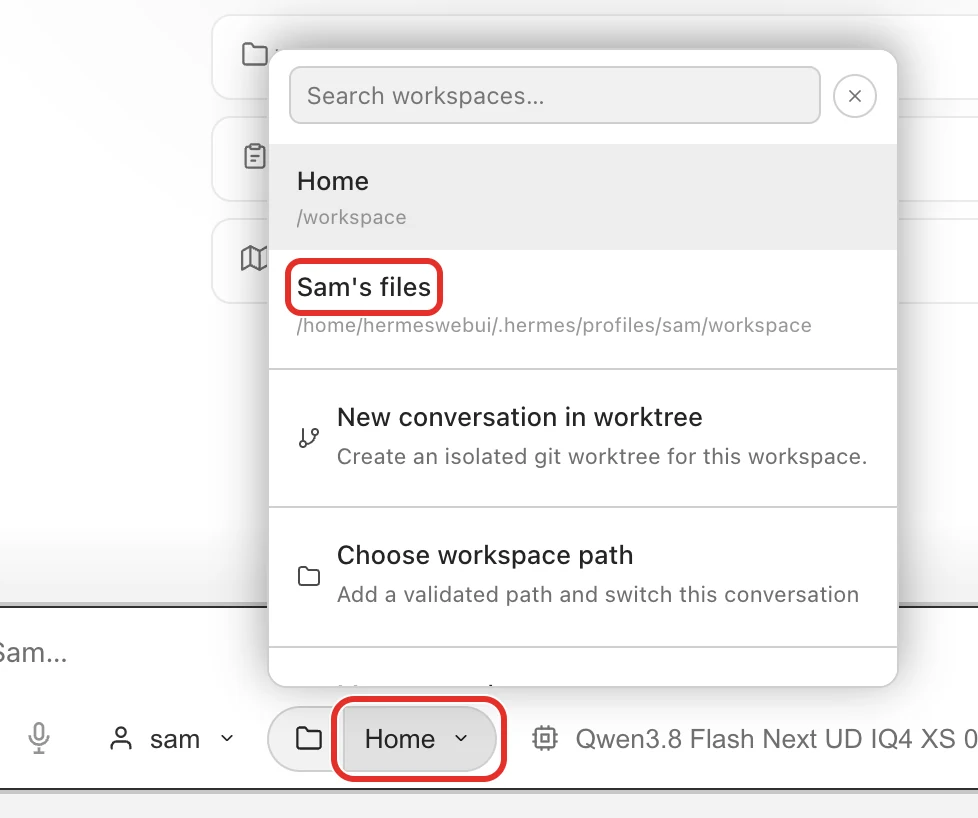
Both buttons now show their name and their folder, and the message box says Message followed by their name.

After their first message, new conversations on their profile open in their folder on their own.
Good to know
- Each browser remembers its own profile. Switching on their device doesn't change yours.
- After their browser fully restarts, it may open on default again, showing your chats. They pick their profile again from the profile button.
- On a shared computer, check the profile button before typing.
- Both chatting at once: if you both send a message at the same moment, one reply waits until the other finishes.
- Their profile and their Signal assistant are separate. If they also have one from Add people in your household, the two don't share memory.
If something goes wrong
- "Error: Path does not exist" when saving the folder: the profile name in the path doesn't match the one you created. Check spelling and capitals, and that there are no spaces.
- Their folder isn't in their folder menu: it was added while your profile was selected, so it's in your list instead. Switch to their profile and add it again.
- They see your chats: the profile button says default. They pick their profile name.
- Their chats show up in your list: someone clicked Show … from other profiles above the list. Click Show active profile only to hide them again.
Still stuck? Email michael.maddison@voxcura.io. See Get help.
Verified on Box software 0.2.9 · 2026-10-13