DocsConnect
Reach your Box from anywhere (Tailscale)
Turn on Remote access so you can open your Box from your phone or laptop when you are away from home, with a padlock once secure access is on.
Turn on Remote access once to open your Box from anywhere. It uses Tailscale, a free app; only devices signed in to your Tailscale account can reach your Box. Turn on secure access too, and your Box opens with a padlock at an https:// address. Secure access is also what lets you talk to your Box.
Open the Remote access page
Do this at home, on the same Wi-Fi as your Box.
- Open http://box.local and sign in.
- At the top right, tap Settings.
- Tap Remote access.
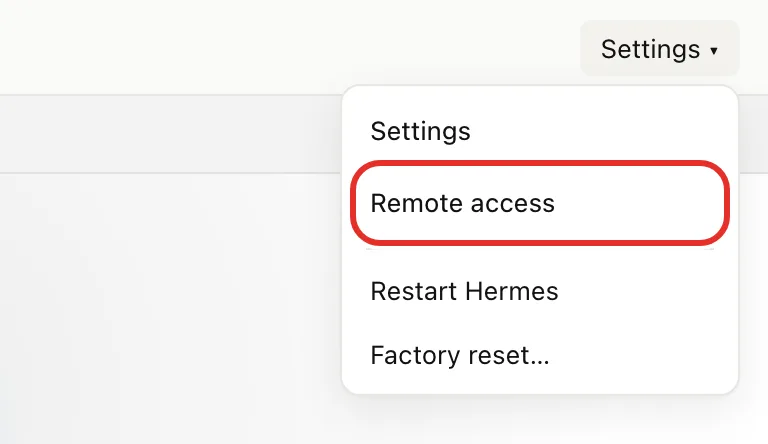
Turn on Remote access
- Tap Enable Tailscale.
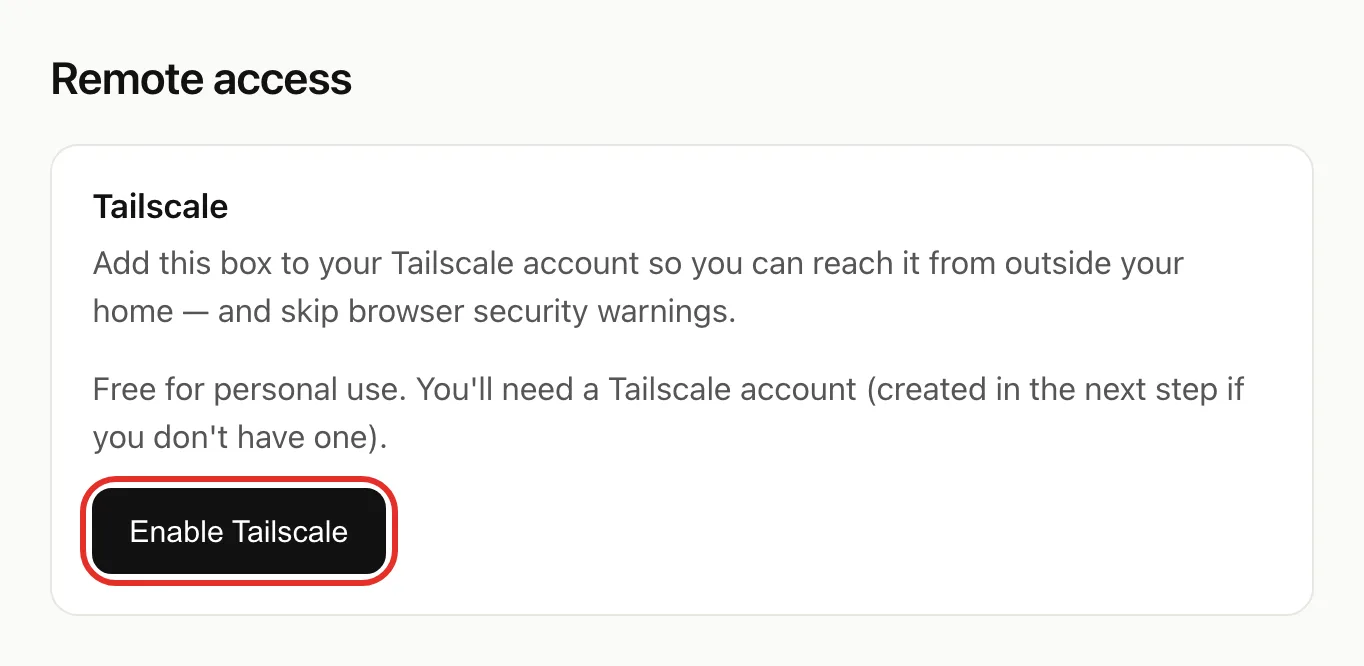
- Wait for the page Open this on a signed-in device.
- Tap the login link in the grey box.
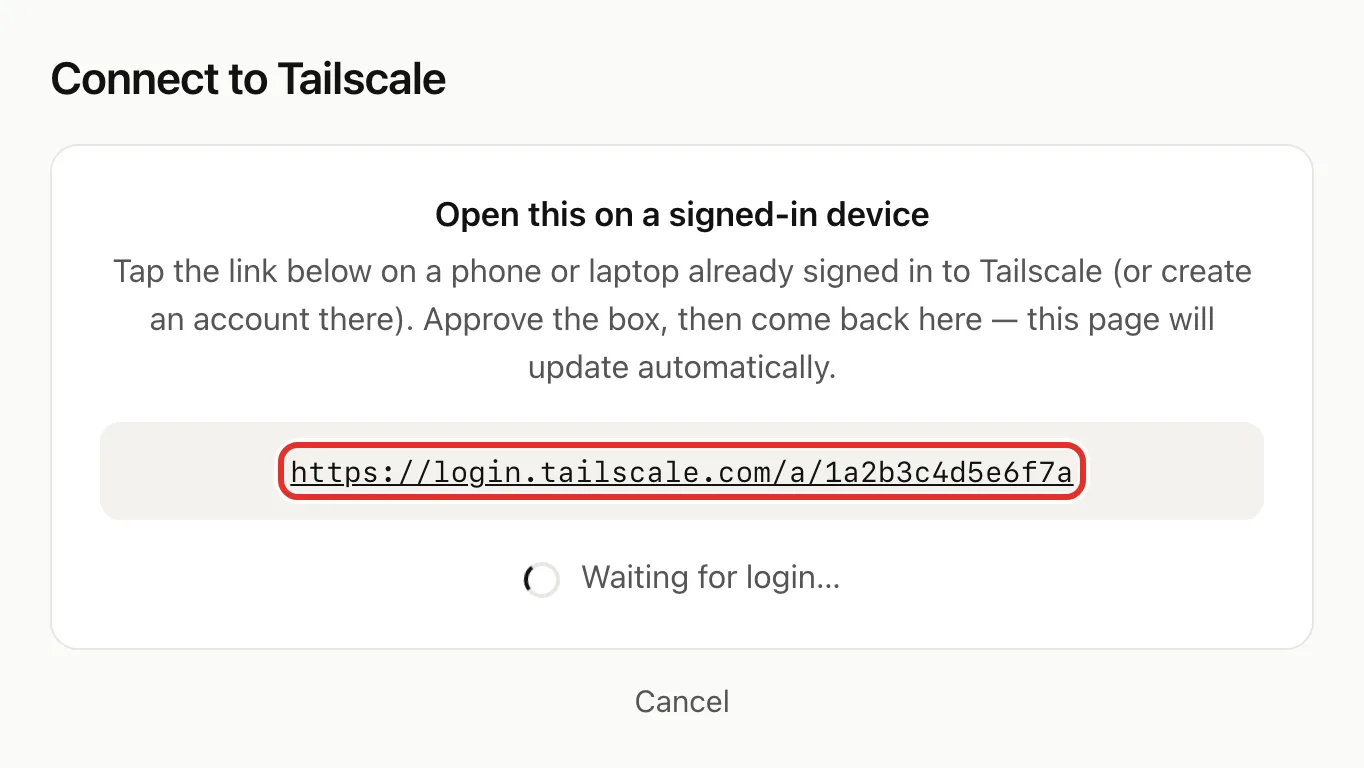
- On the Tailscale page, sign in or create an account, then approve your Box.
- Go back to your Box's page. It updates by itself. If your Tailscale account already has HTTPS on, it shows Status: connected and you are done. Otherwise it offers Turn on HTTPS: follow the next section.
Turn on secure access (HTTPS)
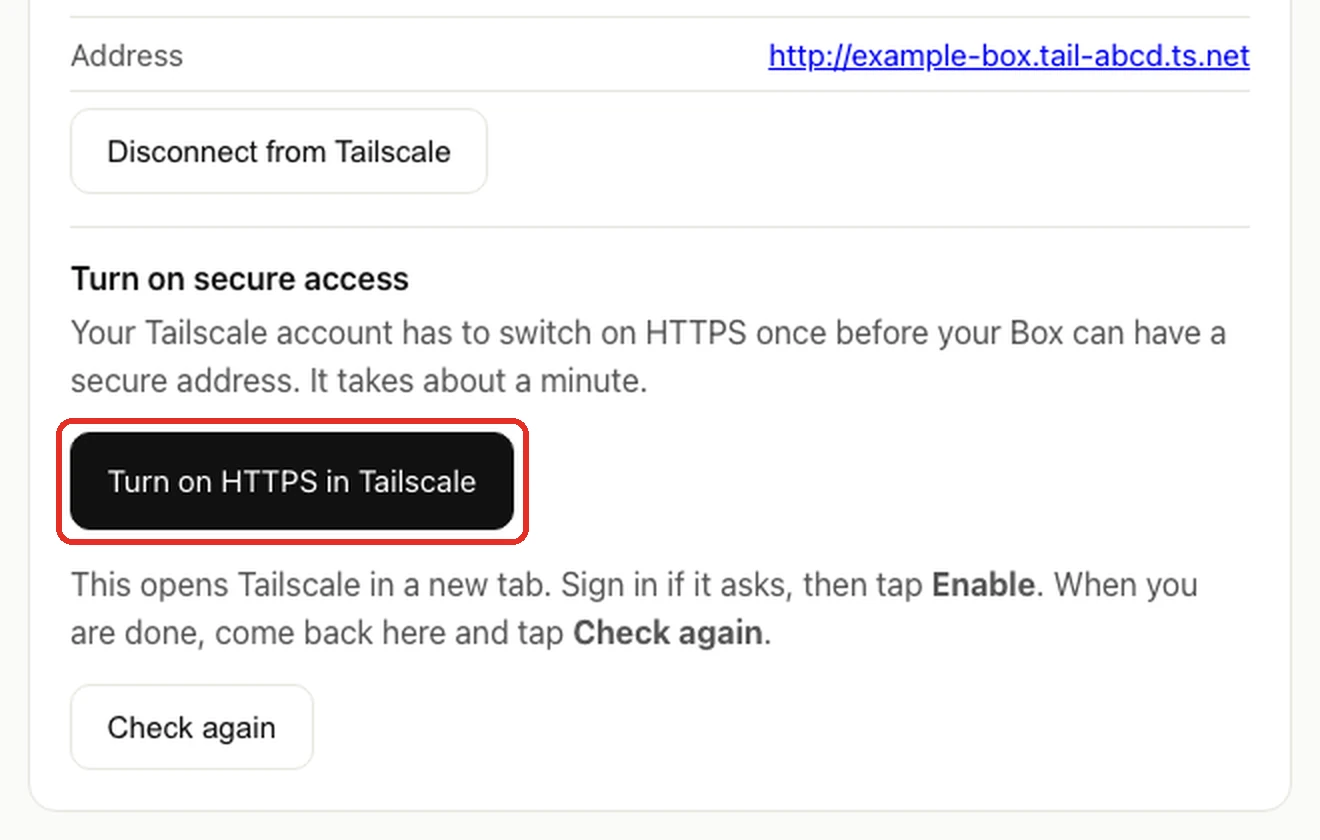
Your Tailscale account has to switch on HTTPS once. It takes about a minute, and you can skip it and come back later.
- Tap Turn on HTTPS in Tailscale. Tailscale opens in a new tab.
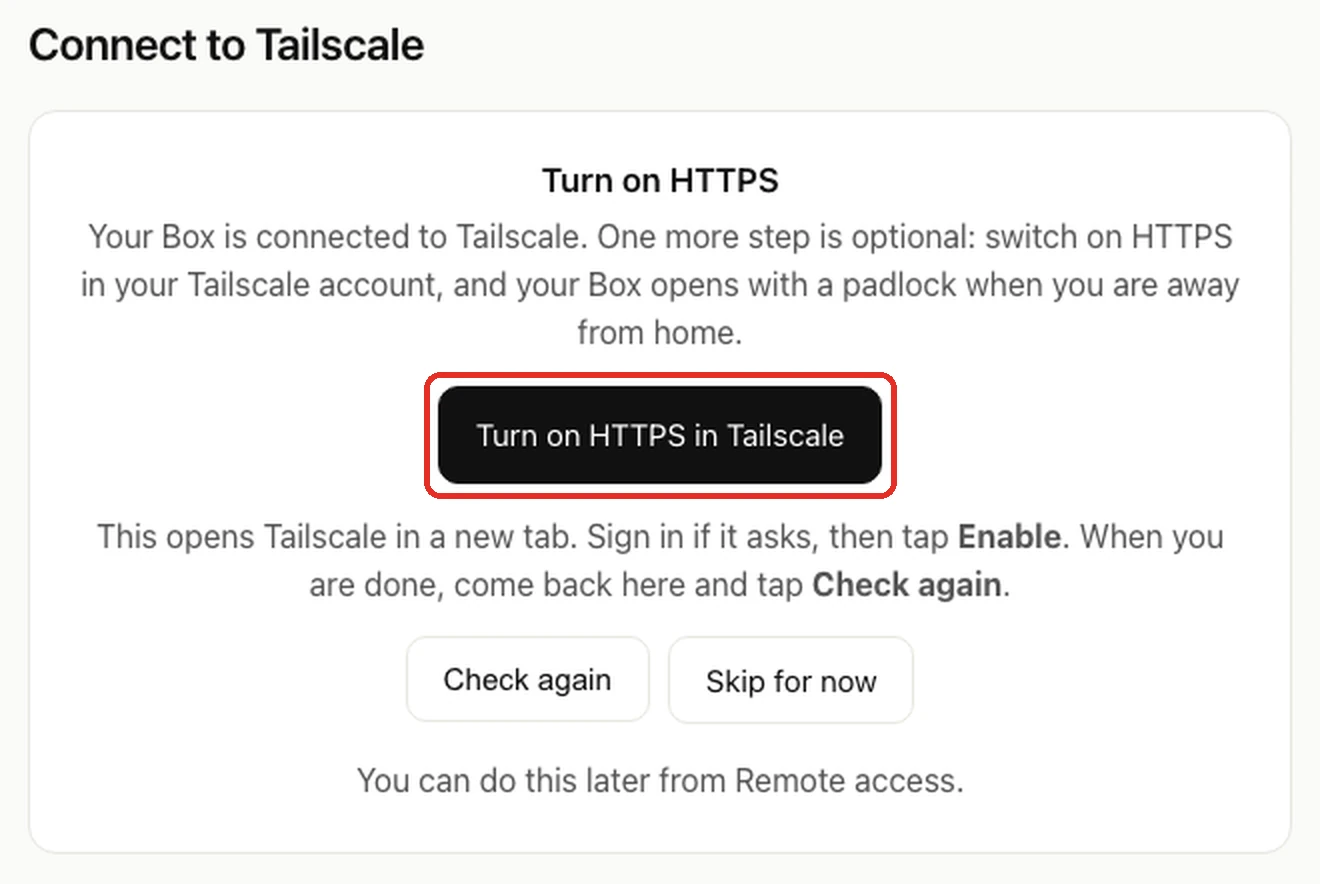
- Sign in if Tailscale asks, then tap Enable.
- Come back to your Box's page and tap Check again.
- The Remote access page shows Secure access is on, and the https:// address next to Address. That is your Box's secure address.
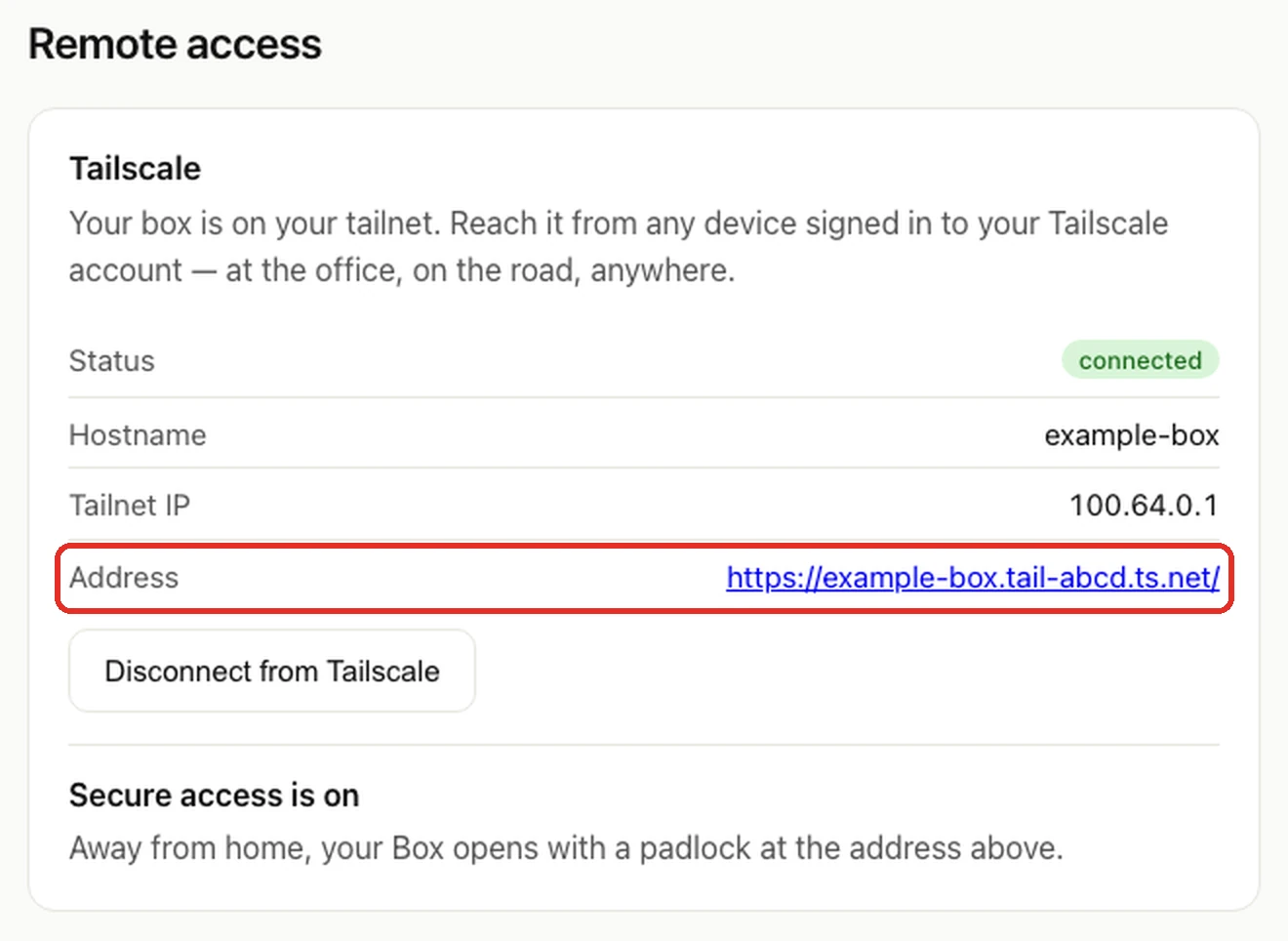
Skipped this step? The Remote access page shows Turn on secure access with the same button.
Install Tailscale on your phone or laptop
Do this on every device you want to use away from home.
- Install the Tailscale app (App Store, Google Play, or tailscale.com/download).
- Sign in with the same account you used for your Box.
- Allow it to connect, and make sure it is switched on.
Use your Box away from home
- Switch on the Tailscale app.
- In your browser, open your Box's address and sign in as usual:
- With secure access on, use the https:// address from the Remote access page. It looks like https://box.your-tailnet.ts.net, with your own tailnet name in the middle.
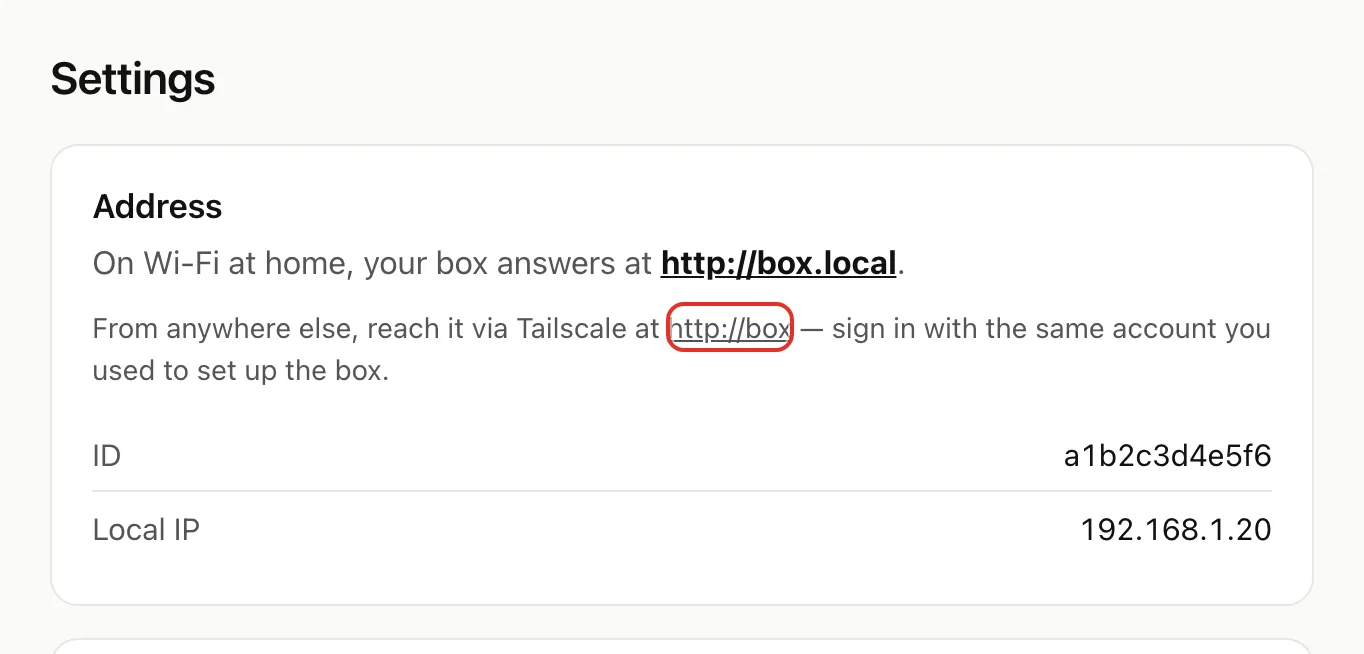
- You can also type http://box. With secure access on, your Box sends you on to its https:// address.
Settings shows the short address under Address.
Turn off Remote access
On the Remote access page, tap Disconnect from Tailscale. Your Box signs out of Tailscale; http://box.local still works at home.
If something goes wrong
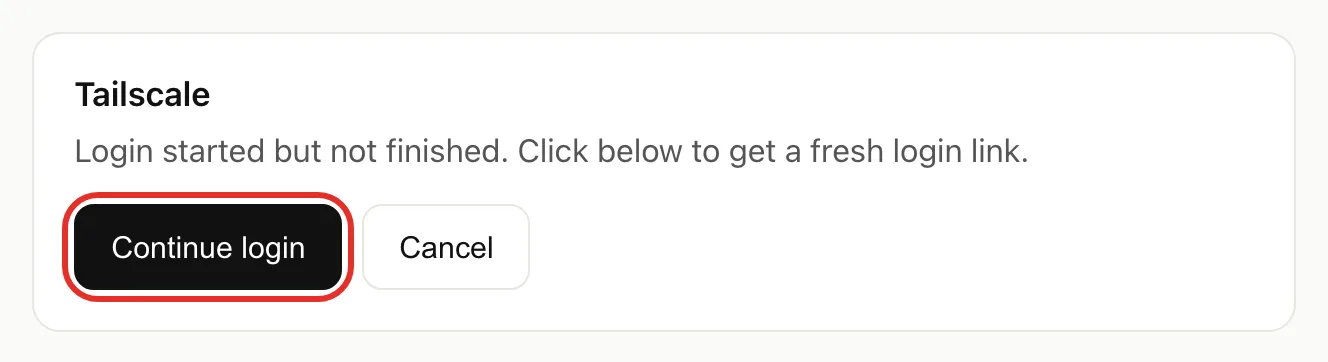
- "Login started but not finished" (or you tapped Cancel under the login link). Tap Continue login for a fresh link, then follow Turn on Remote access from step 2. The Cancel button next to it stops the login.
- "Secure access is being set up." The first time can take a minute or two. Tap Check again. Still waiting after a few minutes? Make sure HTTPS is on in your Tailscale account (see the first note under Turn on secure access).
- "Couldn't reach Tailscale." Tap Try again.
- "Tailscale isn't installed on this box yet." Email michael.maddison@voxcura.io and we will set it up.
- Your Box will not open away from home. Check the Tailscale app is on and signed in to the same account, then use the address next to Address on the Remote access page.
More help: Troubleshooting, Get help. To let other devices sign in, see Sign in and add devices.
Verified on Box software 0.2.11 · 2026-10-28